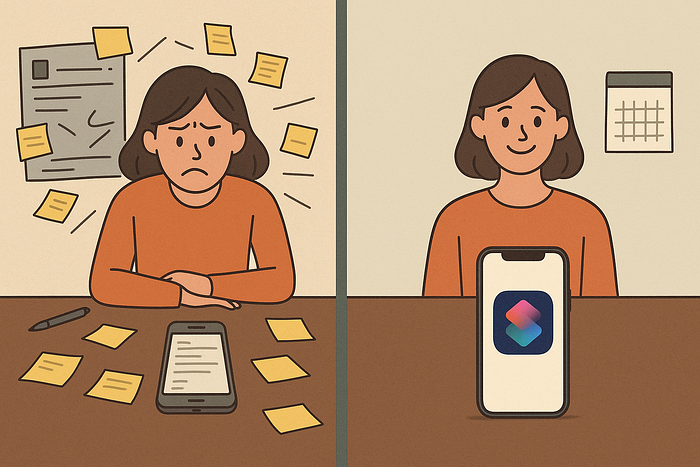


My iPhone is always in my hand, but most of the time it makes me lose time rather than help me save it. I kept handling a lot of small routines manually because, to be honest, the Shortcuts app seemed very daunting to me with too many options to fiddle around with.
I thought setting up automations would take too much effort or that I wouldn't save much time even if I automate certain tasks. Thankfully, I decided to give the Shortcut app and its countless automations the benefit of the doubt, and I realised I was wasting more time avoiding them than using them.
I then tinkered around with a bunch of automations, and the five below are the ones that turned out to be genuinely helpful and fit right into my daily and weekly rhythm.
#1 A Smarter Way To Save What You Want To Remember
As someone who reads and watches a lot of content on my iPhone but ends up remembering almost none of it just a couple of days later, I really love this automation.
Typically, when I want to remember something or follow up on something I learnt later, I take a screenshot, bookmark the link, or add my notes to it. Not only does this process take a lot of time, but it also means that after a while, when you revisit this screenshot or website, you have almost no context on why you saved it.
The Shortcuts Automation called Remember This (credits: youtube.com/@beardfm) helps forgetful people like me remember why we saved something with a bit more context, thanks to a ChatGPT integration.
When this automation is triggered, it will take a screenshot of the screen you are currently on, send it to ChatGPT, get a summary of the contents in the image, and then store both the photos and the summary notes in the Notes app in a folder of your choice, and then open the note for you.
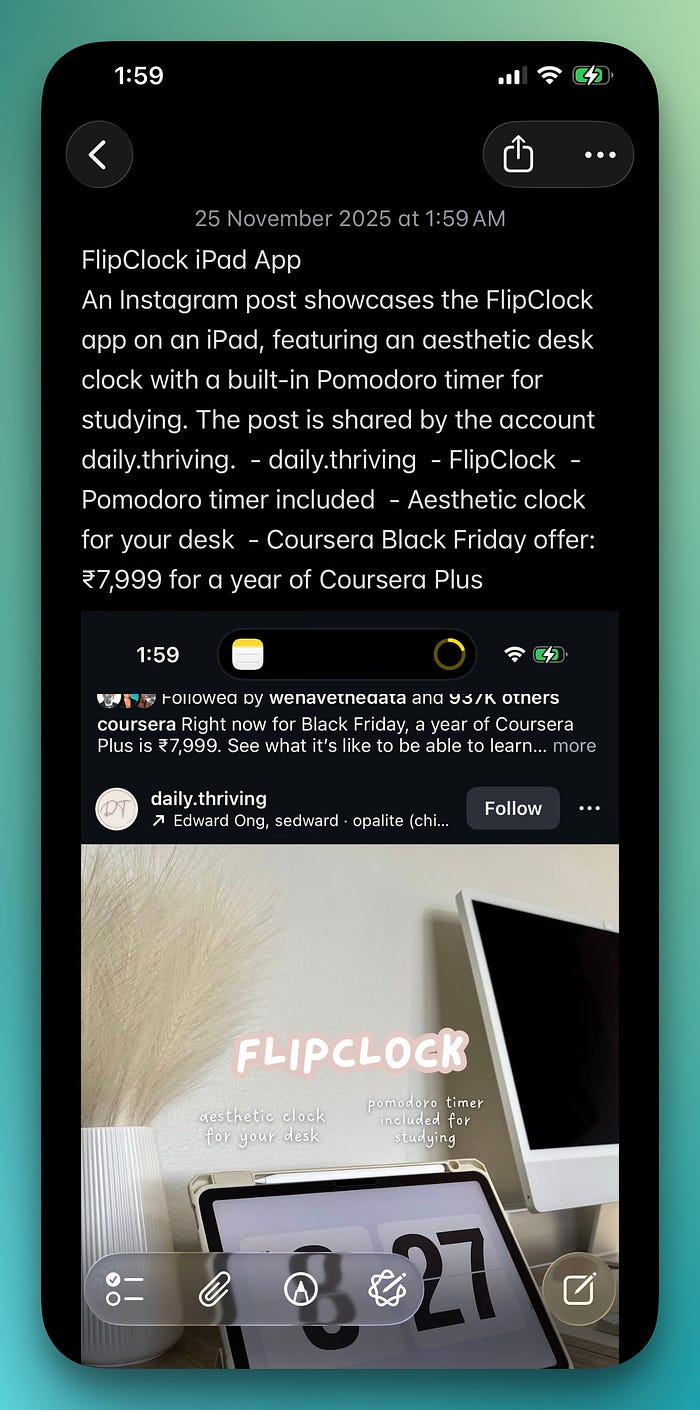
You can add any additional context if you want, or leave it as is and come back to it later when you need it.
As someone who does a lot of research about apps to write about, iOS settings, or even just catching up on the latest news, this automation is going to make my workflow easier and save me a lot of time.
Plus, it's really nice to have all your notes and screenshots in the same place, neatly organized, without you having to do anything.
I have this automation added to a separate shortcut automation page in my control center. But if you think you might use it more frequently, you can assign it to the Action Button or the back tap gesture on your iPhone.
#2 The Shortcut That Speeds Up Every Brainstorm Session
My current workflow for brainstorming ideas, whether for my blog or other projects I am working on, is to first write them down in my notebook or on my whiteboard. This is always the first step to dump stuff from my brain onto something.
Once that is done, I pick a few things I can work on immediately and add them to a task list. After this, I use ChatGPT to brainstorm different approaches or ideas related to it, which involves typing out everything I wrote on paper.
I know this doesn't sound very practical, and it is very tedious, but it works for me, and I have heard the saying, 'If it ain't broke, don't fix it' far too many times to meddle with my process.
However, as a self-proclaimed perfectionist, I am always looking for ways to fine-tune my processes and improve my workflow, which is when I found this automation called 'Brainstorm with AI.'
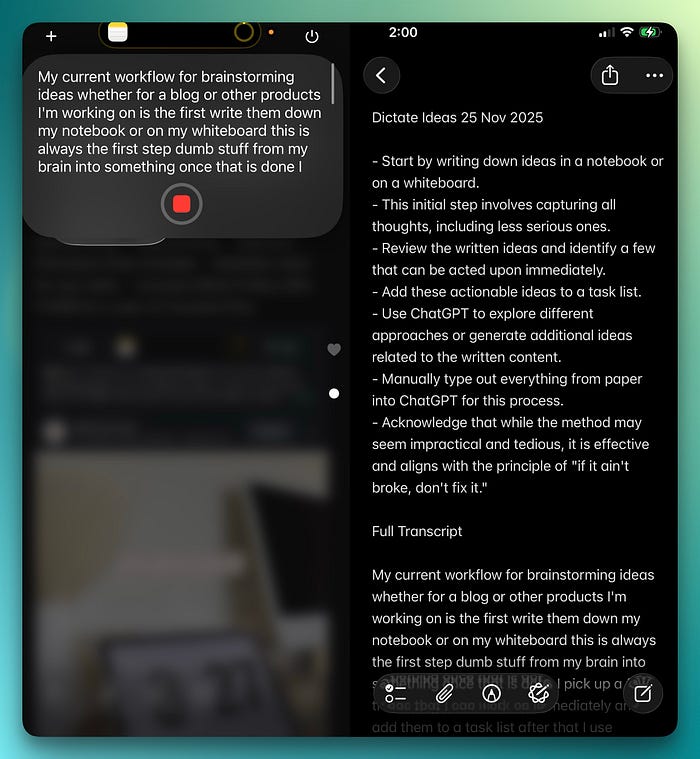
It uses Apple Intelligence to record and transcribe your voice memo, then uses the AI to summarize and extract key insights, all within a few seconds.
I still haven't abandoned the physical notetaking process; I've just added this automation as an additional step to speed things along. Now, instead of typing my notes to an AI, I dictate them, making things much faster and more efficient. This one automation alone can save me at least one hour every week.
Once I am done recording, a new note file is created in the Notes app that includes both the AI summary of my notes and the original transcription of my recording, so I can edit or add to it.
#3 Extract Key Ideas From Any Book In Minutes
As a certified bookworm who has read over 65 physical books so far this year, this is my favorite automation in this list.
I believe that passively reading a ton of books might make you feel very productive and like you've done something useful, but it won't matter if you can't remember anything when you move on to the next book.
Since we have already established the forgetful nature of my memory, I rely on a few techniques like using sticky tabs, making index cards with key insights from the book, highlighting interesting ideas, maintaining a book journal, and even sharing what I learnt online to retain as much information as possible from the books I read.
I am sure it is obvious now I am open to try anything that would help me make the most of reading a book, and this automation does precisely that.
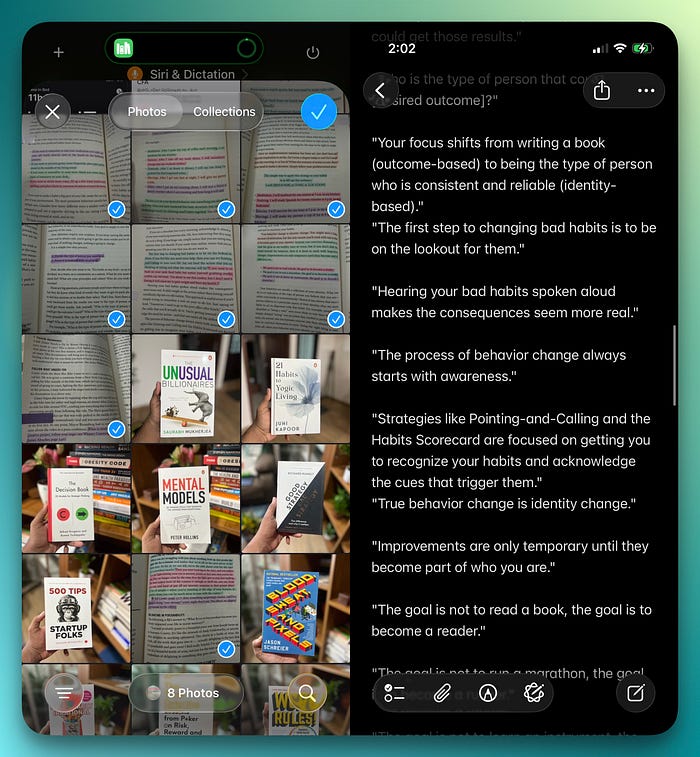
It lets you upload photos of book pages you have taken (I must have hundreds of them), use AI to extract the text from the images, and create a note in Apple Notes with all the key points and quotes from the book.
I was surprised by how quickly it worked, even when I had uploaded several images at once. It struggles a little when the image is unclear, but for the most part, it works great.
As a content creator who wants to not only remember as much as possible from what I read but also apply it in my life to improve it, this is an excellent addition to my automation collection.
And also considering I read an average of 1–2 books per week and take a ton of reference photos of the book pages, I can't even calculate how much time I can save with this automation.
#4 Save Time On Your Morning Check In
If you would like to let your partner or someone else know that you have reached your office safely every morning, but often get into trouble because you forgot, you are going to love this automation.
It uses your location information to automatically send a WhatsApp or a regular text message to the contacts of your choice. It can also optionally set your iPhone to Work focus mode and turn on the low-battery mode. This is especially useful if you don't use your phone much at work and would rather not have it die on you in the evening.
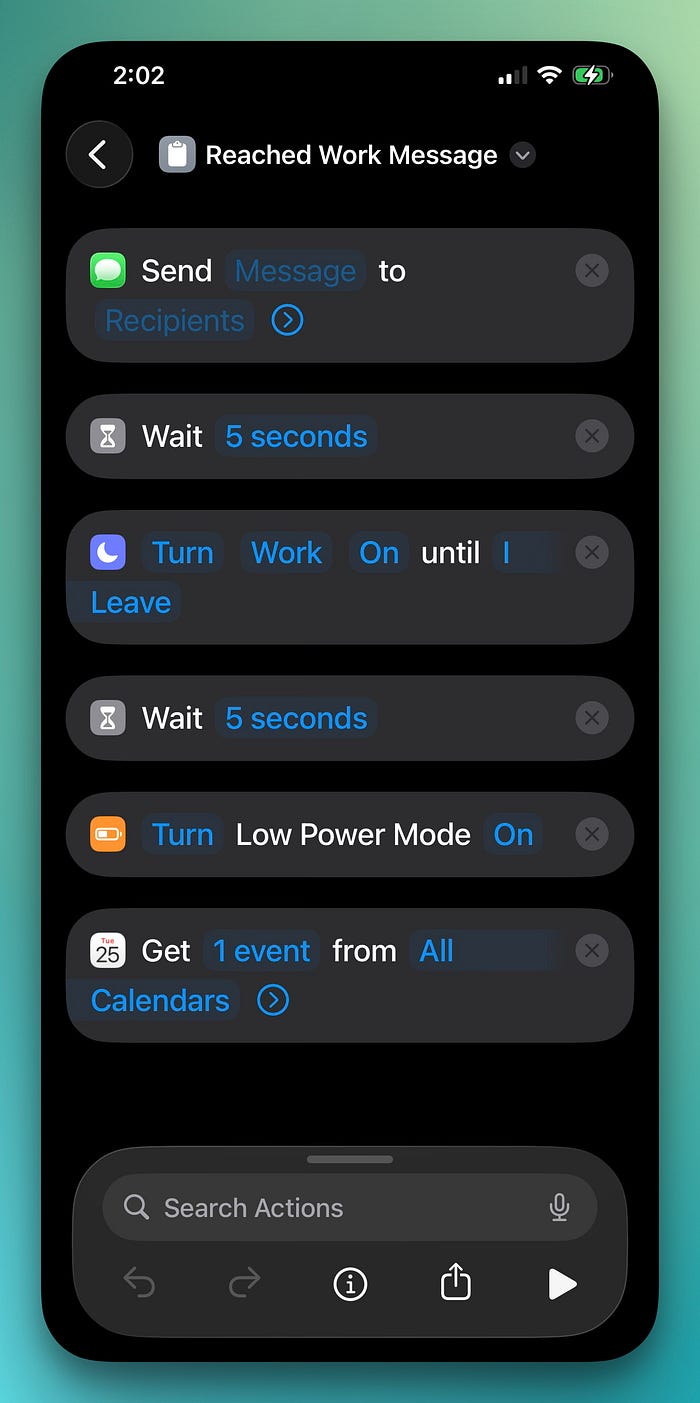
The shortcut also has a default 5-second time delay between these actions. You can edit to either increase the delay or remove it altogether. You can also customize it to add things like getting your calendar events for the day.
You can also duplicate the shortcut to create a version that sends a message when you leave the office, turns off work focus, and puts the device into low power mode.
#5 Journal Every Day Without Typing a Single Word
I have been journaling for a while, and even though I enjoy the process and appreciate the benefits, there are some days when I feel exhausted and would rather scroll through Instagram than type my thoughts.
So, that's why I believe this automation would help me maintain a journal more consistently: it doesn't require you to type on your iPhone, but instead lets you speak your thoughts into it, then uses AI to transcribe and present them in a nice, digestible way.
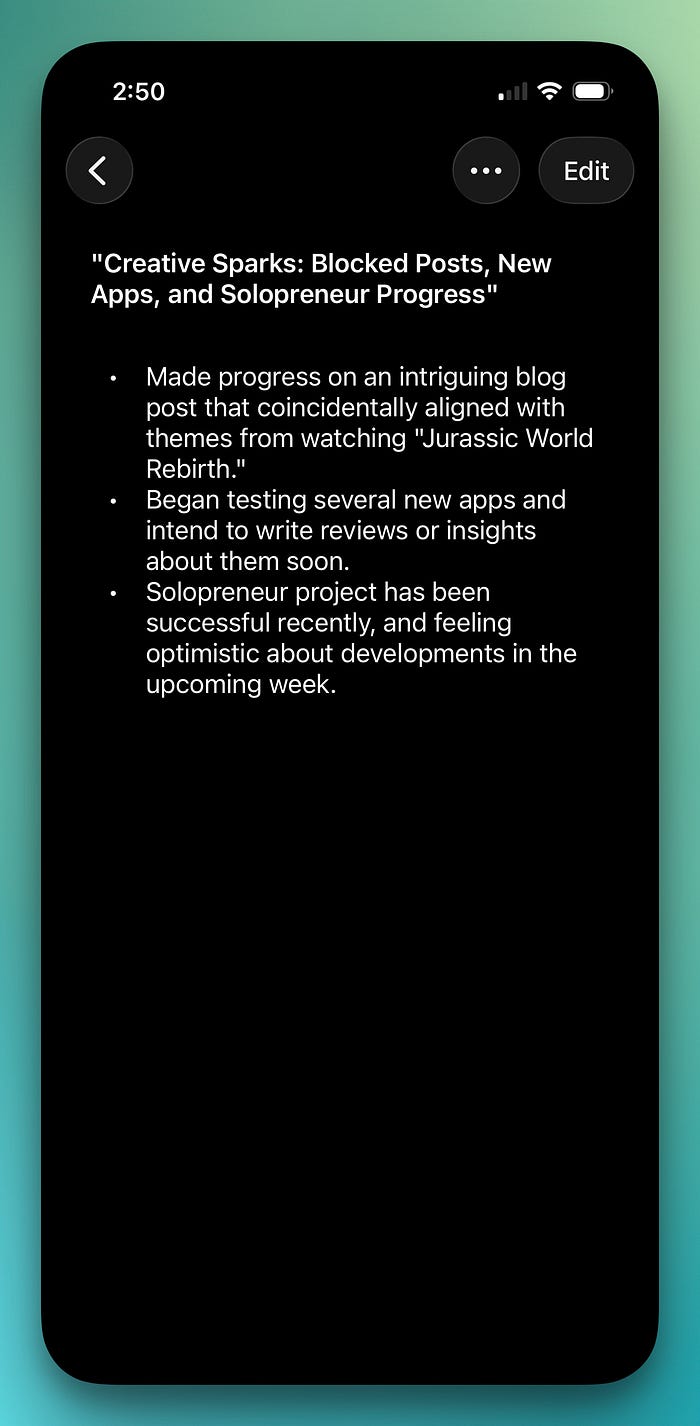
To be honest, journaling this way by speaking your thoughts feels more natural than tapping on a keyboard, and the saved time is just a bonus. Speaking for a couple of minutes, instead of typing for fifteen, makes a noticeable difference, especially during a busy week.
Once you are done talking, the shortcut will automatically create a new journal entry for the date, with a summary and a list of bullet points from what you said.
If you're trying to build a journaling habit as well, this is a great way to start, as it removes the friction that usually gets in the way for most people.
I used to underestimate how much time tiny tasks like the ones in this post could steal from my day until I started using these automations regularly. While they did not fix my entire life, they definitely saved me enough time to notice a difference every week.
If you have been considering automations but never knew where to start, this list will give you the easiest and most practical entry point.
Start with one or two from this list, and let me know in the comments how they have helped in your workflow. Also, if you have any automation ideas, please let me know. I would love to try them out.
I put together a free app library with 120 curated apps across productivity, writing, focus, wellness, and more. Each one has a quick use case and a direct link, so you can find the right app without digging through the App Store. You can access it here: