
Docker announced in August 2021 that companies with more than 250 employees or over $11 million in annual revenue would need a paid subscription to keep using Docker Desktop. The rule took effect in January 2022. That single pricing memo is the reason half my six-person backend team stopped opening Docker Desktop at all and started running everything through the terminal instead.
It did not stop with Docker. Over the past two years I have quietly replaced fifteen GUI apps with terminal tools, one frustration at a time. Not because terminal is trendy. Because every one of these swaps saved me a specific, measurable amount of time or annoyance, and I can point to the specific reason each GUI app lost.
This is not a "real developers use vim" post. Some of these GUI apps are still better for some people, and I say exactly where at the end. But for the workflows below, the terminal won on speed, scriptability, or just not making me alt-tab fifty times a day.
I am grouping these by the GUI app each one replaced, since that is the argument here: not "CLI is superior," but "this specific incumbent lost to this specific challenger, for this specific reason."
Postman and cluster dashboards: xh and k9s

Postman is a fine tool for a QA team that needs to save 200 requests in folders with a UI. For a backend developer testing one endpoint mid-debug, it is a five-second app launch, a login screen, and a workspace picker before you even see a request field.
xh is a single binary. You type the request and get the response in your terminal, right next to the logs you were already reading:
# Set your token first: export API_TOKEN=your_token_here
xh POST api.example.com/orders items:='[{"sku":"SKU-1042","qty":2}]' \
  Authorization:"Bearer $API_TOKEN"
That is the whole interaction. No app switch, no saved collection to find, no sync conflicts between your laptop and your teammate's Postman account. httpie is the more famous alternative, but its GitHub repo has had no commits since December 2024, so I switched to the actively maintained xh. The command syntax is nearly identical, though config files differ.
Worth being honest about my false start: I tried curlie first because the syntax looked cleaner, but it broke on multiline JSON bodies in a way that cost me 20 minutes of debugging. xh handled the same request on the first try.
The honest tradeoff: Postman's collection-sharing and mock-server features are genuinely useful for a team that needs a shared, versioned library of requests non-engineers can also run. xh has no concept of a saved collection; you keep your requests in a shell script or a .http file instead. For solo debugging that is a win. For an eight-person QA team, it might not be.
k9s replaced the Docker Desktop Kubernetes dashboard (and Lens).

If you run services in Kubernetes (whether local dev clusters or staging), checking pod status through Docker Desktop's Kubernetes dashboard or Lens means opening a separate GUI app, navigating nested menus to find the right namespace, then clicking through to logs. k9s is the terminal equivalent: a live, auto-refreshing view of pods, logs, and resource usage, navigable with vim-style keys instead of mouse clicks through nested menus.
k9s -n <your-namespace>One command, and you are looking at every pod in that namespace with logs one keystroke away. The GUI dashboards are not bad, they are just slow to open when you are already three terminal panes deep into an incident.
Docker Desktop: lazydocker and dive
Back to that January 2022 pricing change. My team's Docker Desktop usage was mostly docker ps, docker logs, and clicking through the "Images" tab to see what was eating disk space. None of that needed a full Electron app.
lazydocker replaced the Docker Desktop containers tab.

lazydocker gives you a live, keyboard-navigable view of every running container, its logs, and its resource usage, all in one terminal window:
lazydockerYou get the same information Docker Desktop shows you, but it opens in under a second and lives in the same terminal tab as everything else you are doing. Restarting a container, tailing its logs, or pruning stopped containers is one keypress instead of a menu hunt.
dive replaced Docker Desktop's image inspector.

When you need to know why an image is 2GB, dive shows you a layer-by-layer breakdown of what each build step added, right down to which files bloated a layer:
dive myapp:latestWorth flagging honestly: dive's repo has not been pushed to since December 2024, so it is not the actively developed project it once was. I still use it because nothing else does this specific layer-diffing job as well, but if you are picking a new tool for this today, check whether a fork or successor has taken over by the time you read this.
The tradeoff for both: Docker Desktop's GUI is genuinely friendlier for someone who touches containers twice a month and does not want to memorize commands. If that is you, keep the GUI. If you touch containers daily, the keyboard-driven version pays for itself inside the first week.
GitHub Desktop, Sourcetree, and browser PR review: lazygit, hunk, and gh
This is the cluster where the terminal tools stopped being "as good as" the GUI and started being flatly better for how I work.
lazygit replaced GitHub Desktop and Sourcetree.

Staging individual lines, building a commit, and resolving a merge conflict all happen in one lazygit view, with the diff, the staged files, and the commit box on screen at once:
lazygitThe single biggest win: interactive rebase. In GitHub Desktop, rearranging or squashing commits from three days of work is a multi-click, easy-to-mess-up flow. In lazygit, it is a rebase panel where you reorder commits with j/k keys (vim-style up/down) and mark them for squash with one key. I have watched a teammate do a five-commit interactive rebase in lazygit in less time than it took me to find the "History" tab in Sourcetree.
Watch out: First time I tried interactive rebase in lazygit, I accidentally pushed to main before I meant to because I did not realize the push command was already bound to 'P'. Check your keybindings before you learn the hard way.
hunk replaced browser-based PR review.

hunk is a terminal diff and code review tool built for the era where a meaningful share of the diff in front of you was written by an AI coding agent, not typed by a human line by line. Instead of reviewing a PR in GitHub's web UI, tab by tab, you review it in your terminal, right where the code and the agent's reasoning already live:
hunk reviewThe specific problem it solves: when Claude Code or another AI coding agent hands you a fifteen-file diff, tabbing out to a browser to review it means losing the terminal context where you can immediately run tests or check logs against what you are reading. hunk keeps the review inside the same session.
It is a young project (launched in January 2026, I have used it for three months), so it does not yet have GitHub's multi-reviewer approval threading or CI-status badges built in. For a solo review pass before you push, it is faster than anything else I have used. For a team that needs a formal, auditable approval trail across five reviewers, GitHub's web UI still wins for now.
gh replaced checking Slack for PR status.

This one is less about a GUI app and more about a Slack habit. My team used to post "can someone review this?" in a channel and wait. Now I run:
gh pr status
gh pr view 482 --comments
right in the terminal, and I merge from there too. No context switch to a browser tab, no waiting on a Slack notification that might be muted.
Terminal notifications: noti
I want to be careful here, because Slack is not going anywhere, and it should not. The claim in the title is specifically about the engineering-only threads: "is the build green," "can someone review this," "deploy is running." Those moved to the terminal for me. Cross-team, non-technical, or async-with-context conversations stayed on Slack, because that is what Slack is good at.
noti (or ntfy) replaced Slack pings for CI status.

Instead of a bot posting "build failed" to a channel I have to remember to check, I chain noti onto the command that matters:
gh run watch && noti -t "CI" -m "build finished, check terminal"It fires a native system notification the moment the command exits, success or failure. I stop finding out about a broken build ten minutes late because I had Slack muted, and I stop needing a bot in a channel to tell me something my own terminal already knows.
Note that noti's repository is archived (as of May 2026), so if you prefer notifications that can reach your phone or multiple devices, ntfy is the better long-term choice. It sends push notifications over HTTP, so you can subscribe on multiple devices. For me, noti's native macOS notifications were enough because I am already at the machine that ran the build.
TablePlus and pgAdmin: pgcli and mycli
pgcli and mycli replaced TablePlus and pgAdmin.

Both are drop-in replacements for psql and mysql that add syntax highlighting, autocomplete on table and column names, and a smarter multi-line editor, without leaving the terminal:
# Both tools prompt for password if not in connection string
pgcli postgres://user@localhost/orders_db
mycli mysql://user@localhost/orders_db
Autocomplete on column names sounds small until you are three joins deep in a query and it saves you from tabbing to a GUI schema browser to remember whether the column is created_at or createdAt. Both tools come from the same dbcli project, so if you learn one, the other feels identical.
The honest tradeoff: TablePlus's visual table browsing and one-click foreign-key navigation are genuinely faster for exploring a schema you do not know yet. For queries against a database you already understand, the CLI version is faster because you are typing what you already know instead of clicking to discover it.
Finder, Activity Monitor, and log dashboards: yazi, btop, and lnav
yazi replaced Finder for project navigation.

yazi is a terminal file manager with image previews, fast fuzzy search, and vim-style navigation:
yaziThe specific habit it broke: alt-tabbing to Finder to drag a file into a terminal path. Now I navigate to it in yazi, in the same window, and copy the path with one keystroke.
btop replaced Activity Monitor.
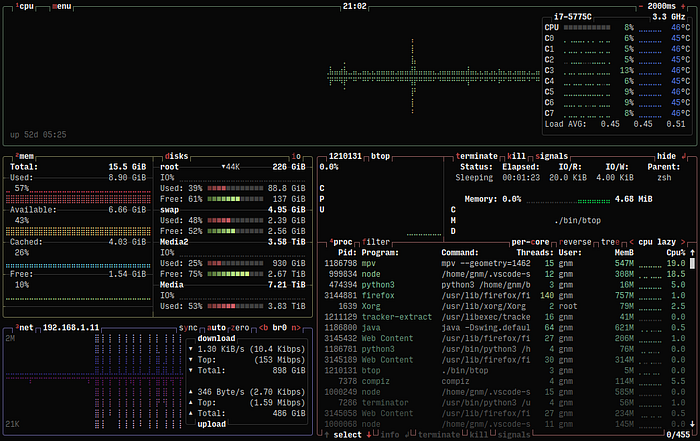
A live, colorful view of CPU, memory, disk, and network, updating multiple times a second:
btoplnav replaced clicking through a log dashboard for a quick local check.

lnav merges multiple log files into one timeline and lets you query them with SQL syntax:
lnav /var/log/app/*.log
# Once inside lnav, press : and type SQL queries like:
# :filter-in ERROR
# :goto 2026-07-11 14:30:00
This is the steepest learning curve of anything on this list. The query syntax is not intuitive on day one, and a point-and-click log dashboard's filter buttons are genuinely easier to guess your way through. It took me two days of forcing myself to use it before the query syntax clicked. I kept using lnav anyway because once you know three or four query patterns, filtering across ten log files by timestamp and error code is faster than any dashboard's filter panel, and it works the same whether you are on a server with no browser or your own laptop.
Pro tip: Run lnav with sample logs and press ? to see common patterns. Learning the first three commands is 80% of the value.
Cursor's chat panel and iTerm2's window management: Claude Code and zellij
The last two tools are not direct GUI replacements in the same way the others were. They are workflow integrations that tie the previous thirteen together, but they each solved a specific GUI friction point for me.
Claude Code replaced Cursor's chat panel and Copilot Chat.

Cursor's chat panel and Copilot Chat are good at answering a question about the file open in front of them. Claude Code runs in the terminal, reads and edits files across the whole project, runs your tests, and reports back what changed, without you narrating file paths one at a time.
The difference in practice: when I ask an IDE chat panel to fix a bug, I am the one who runs the failing test, pastes the output back in, and applies the diff. When I ask Claude Code the same thing, it runs the test itself, sees the failure, and iterates before showing me the result. That loop is the entire reason this replaced an IDE panel rather than sitting next to it.
zellij replaced iTerm2's window management.

None of the fourteen tools above are useful if you are alt-tabbing between six terminal windows to use them. zellij is a terminal multiplexer: one terminal session, split into panes and tabs, that survives if you close your laptop lid (or, when run on a remote host, if your SSH connection drops).
zellij attach --create workI keep one pane running lazygit, one running the app's dev server, one free for ad hoc commands, and reattach to the exact same layout after closing my laptop for the day.
The honest tradeoff: zellij's learning curve is real but shorter than tmux's. It ships with on-screen keybinding hints by default, so a new user is not stuck memorizing a prefix-key chord cheat sheet before doing anything useful. What it does not have is tmux's fifteen years of plugins and Stack Overflow answers. If you already have tmux muscle memory and a working config, there is no strong reason to switch. If you are starting from zero, zellij gets you productive faster.
Where the GUI still wins
None of this is an argument that GUIs are obsolete. It is an argument that fifteen specific workflows, for me, were faster without one. Three places the GUI still wins outright:
Slack, for anything involving a non-technical stakeholder, a decision that needs a paper trail with reactions and threads, or a conversation that spans more than two people. The terminal has no answer to "get finance and support and engineering aligned on a launch date in one place."
TablePlus or a similar GUI, for a schema you have never seen before and need to explore visually before you know what to query.
Docker Desktop, for anyone who touches containers occasionally enough that memorizing a CLI's commands costs more time than it saves. If you open a container twice a month, keep the GUI.
Pro tip: The pattern across all fifteen swaps was never "terminal beats GUI." It was "the GUI's app-switch tax stopped being worth paying once I was doing this thing daily." Measure your own frequency before you swap anything on this list. If you do something once a week, the GUI's discoverability wins. If you do it ten times a day, the terminal's speed wins, and it is not close.