

Update 2nd Feb: Clawdbot was renamed to Moltbot and then to Openclaw. the article was updated based on latest comments.
Openclaw (Previously Clawdbot → Moldbot ) is an open-source personal AI assistant you run yourself, on your computer or server. It connects to messaging apps you already use — like WhatsApp, Telegram, Discord, Slack, Signal, or iMessage and turns Large Language Models into a truly personal, always-available companion that can remember context and even take actions for you.
At its core, Openclaw is built around a few simple but powerful ideas.
- First, it has persistent memory. Your preferences, past conversations, and ongoing tasks are stored locally as real files. This means your assistant doesn't "reset" every day it learns how you work and adapts over time.
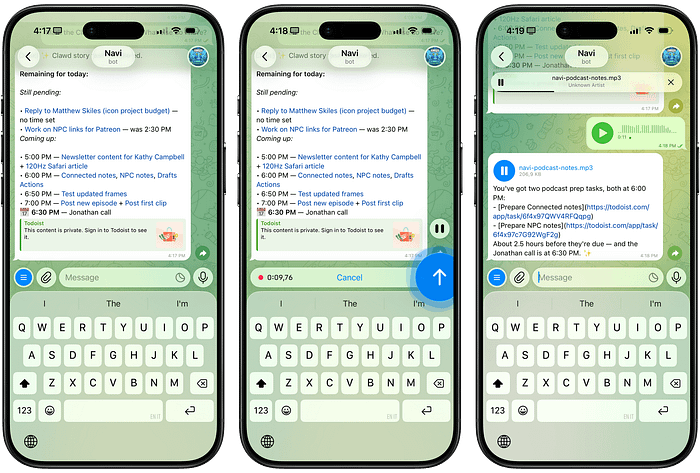
- Second, it is proactive. Instead of waiting for prompts, OpenClaw can send you morning briefings, reminders, alerts, and summaries exactly when they matter.
- Third, it can take real actions. With the right permissions, OpenClaw can manage emails, update calendars, perform web research, automate browser tasks, or work with developer tools like GitHub.
- Finally, it is self-hosted. Your data stays on your machine or server. There is no opaque cloud service, no ad-driven business model, and no hidden data collection.
This combination, memory, autonomy, extensible skills, and full ownership — is why many early users describe OpenClaw as the AI assistant we were promised years ago but never received.
This combination->persistent memory, proactive behavior, extensible skills, and self-hosted control, drives why many early adopters see OpenClaw as the AI assistant we were promised years ago but never got from big tech companies.
How OpenClaw Is Structured
While the user experience focuses on chats and messages, underneath OpenClaw is a thoughtful architecture with four key components:
- The Gateway is the communication hub. It connects your messaging apps. Telegram, WhatsApp, Discord, and others — to the AI agent and routes messages back and forth.
- The Agent is the "brain." It is powered by large language models such as Claude or GPT and is responsible for reasoning, decision-making, and using context from memory.
- Skills extend what the agent can do. These are optional tools that let OpenClaw search the web, read and send emails, interact with GitHub, automate browsers, or connect to productivity apps.
- Memory is a persistent, file-based system. Conversations, preferences, and long-term context are saved as inspectable files on your system, making OpenClaw transparent and customizable.
Because these elements interlock and are modular, OpenClaw is far more adaptable than one-size-fits-all cloud assistants but also more hands-on, especially during setup.
In this guide, you'll see precise installation instructions from start to finish.
What You'll Need Before You Start
- Node.js v22 or later installed on your system.
- Git (for some install paths).
- Command-line access (Terminal on macOS/Linux, PowerShell/WSL on Windows).
- Messaging apps you want OpenClaw to connect to (e.g., WhatsApp, Telegram).
Optional: pnpm (recommended package manager) or npm.
Step 1 — Install OpenClaw
The easiest way to get OpenClaw is through the official installer script, which detects your OS and installs everything needed.
In your terminal, run:
curl -fsSL https://clawd.bot/install.sh | bashThis script:
- Detects your operating system.
- Ensures Node.js 22+ is present.
- Installs OpenClaw globally using npm.
If you prefer manual control, you can clone the GitHub repo and build from source instead — but the installer is easier for most users.
Alternatively, you can also run
npm install -g openclaw@latestPlease note you will need node.js 20+ version to run OpenClaw. use the below command to update the node.js
nvm install 22To check your node version use the below command.
node --versionStep 2 — Run the Setup Wizard
Once installed, run the interactive onboarding wizard that guides you through the initial configuration:
openclaw onboard --install-daemonThis wizard asks a few important questions:
- Where to run the Gateway? (Local on your machine or remote).
- How to authenticate to AI providers (OAuth for OpenAI/Anthropic or API keys).
- Which messaging providers you want connected (WhatsApp, Telegram, Discord, etc.).
- Whether to install OpenClaw as a background service (daemon).
This guided setup is the recommended way to configure OpenClaw — it builds the basic config for you automatically.
Step 3 — Start the Gateway
OpenClaw runs a "Gateway," a local server that connects messaging apps with the AI agent:
openclaw gateway --port 18789 --verboseOnce this gateway is running:
- Open your browser at: http://127.0.0.1:18789/
This opens the OpenClaw control dashboard, where you can see logs, link accounts, and manage sessions.
Step 4 — Connect Your Messaging Apps
OpenClaw supports many surfaces where you can talk to your assistant:
1. WhatsApp
pnpm openclaw loginAfter you ran the above command, A QR code appears, scan it in WhatsApp under Settings → Linked Devices to link.
2. Telegram
For Telegram, create a bot via @BotFather and paste the token into the OpenClaw config when prompted.
Discord tokens work similarly by creating a bot in the Discord Developer Portal.
Once you complete this, your assistant will appear in these channels as if it were a normal chat contact.
Step 5 — Verify Your Installation
You want to make sure everything is healthy and running:
openclaw healthThis confirms that the Gateway, authentication, and channel connections are all active.
When your OpenClaw is up:
- It remembers context and your conversations.
- It can send proactive messages or reminders.
- You can install skills to give it more capabilities.
You can hook it up with tools like browser automation, file operations, email parsing, and more.
If you want to host Openclaw on Amazon EC2: Check out : Openclaw Guide for Amazon EC2
What You Can Do Next
Once running, Openclaw quickly becomes more than a chatbot. You can:
- Set up daily morning briefings
- Maintain persistent shopping or task lists
- Summarize and manage email
- Schedule meetings across calendars
- Research topics and compile reports
- Add skills for web search, GitHub, Notion, and more
As you interact with it, Openclaw learns your preferences and adapts its responses and behavior over time.