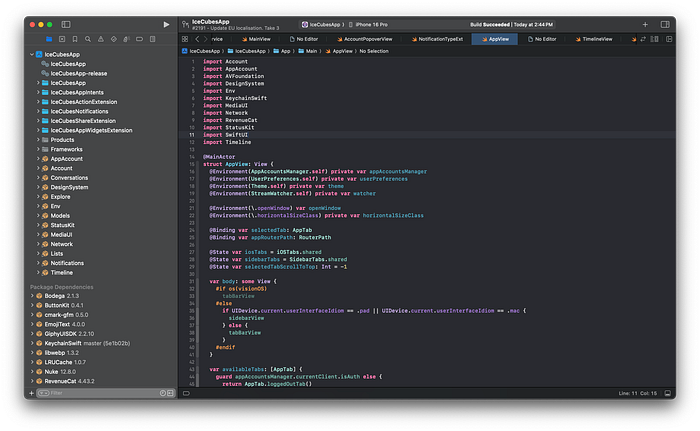

The project was already split into multiple Swift packages; it was not a big lift. The only thing I did was to use the "Convert to Folder" command on every folder at the app level.
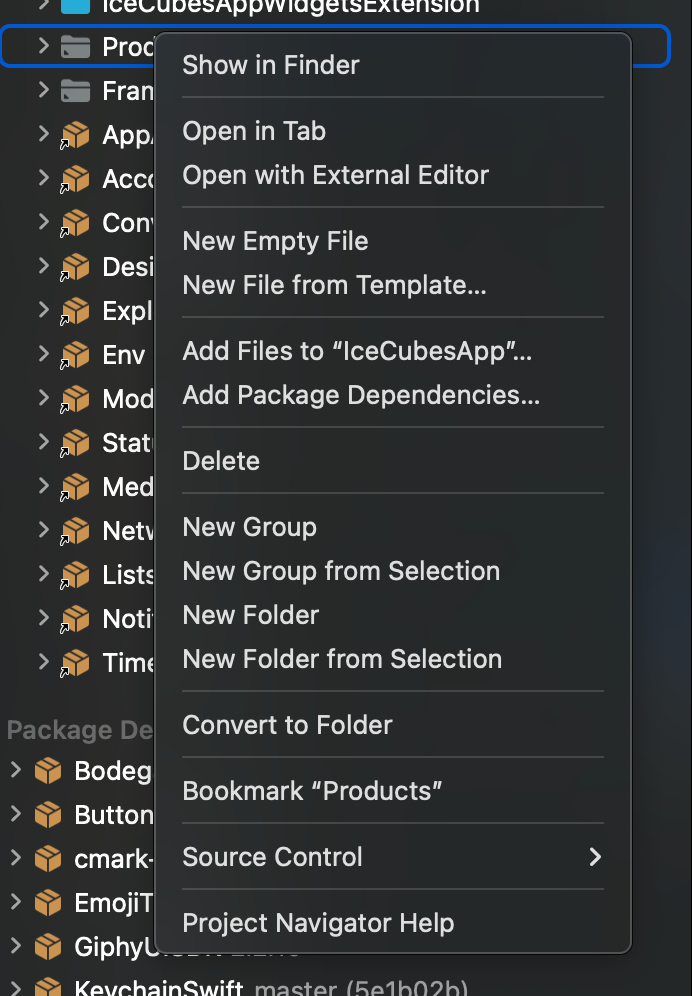
For this to work, you have to be sure that what you see in Xcode already reflects the folder layout. Unless you're doing any custom / virtual organization within your groups, this should already be the case. Folders work exactly how they should; they just show (and compile/include) whatever is in the folder, just like an SPM package.
Folders have many advantages over Xcode virtual groups, so I think it's worth enumerating them in an article so you can get the gist of it.
No more merge conflicts
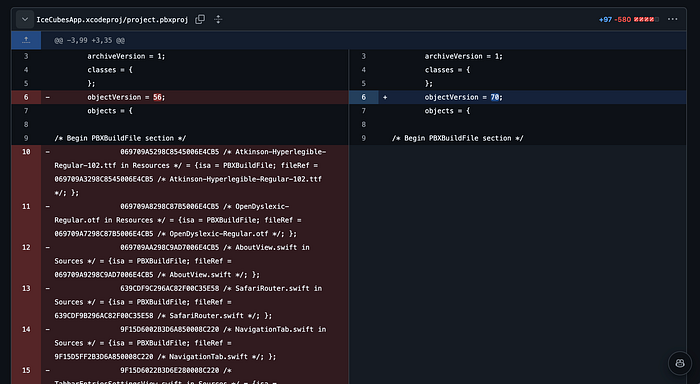
This is part of the diff of the migration I did on Ice Cubes, and you can see the full commit here:
It basically removes all the manual/groups/file references from your xcodeproj and just use whatever is on your file system at this time.
Working with an external editor
Let's say you follow my awesome post about using Cursor for iOS development:
Well, if you were to use Xcode groups (which has been the default forever with Xcode) instead of folders, you would need to create or delete files within Xcode. Any operation you could do in your external environment has no effect on the Xcode project itself, as the file reference would not be added to the .xcodeproj file.
Using your file system as the source of truth solves that. It means you can work with your project in any code editor, modify files, and have the project working/compiling.
Losing virtual file ordering
One of the downsides (which is not one for me, IMO) is that you can't use Xcode virtual file ordering anymore. As the folder now reflects what's on your file system, it'll be sorted by alphabetical order, and that's it. But almost (if not all) every other code editor / IDE already does that. This is a nonissue; I don't want virtual file ordering. I want precisely what is on my file system.
How to know if this is a group or a folder?

Groups are in gray, and like for Swift packages, folders will be blue. So once you hit "Convert to Folder," you'll see them turning blue. This means that it's not reading the .xcodeproj file to reference your files anymore; instead, it's reading the folder on the file system.
I hope this article helped you understand Xcode groups vs. folders. In any case, let me know in the comments!
🚀 Happy coding!