

Hello everyone — Asheesh here.😎
Nonmembers click here
If you work as a software engineer, you already know how many things demand your attention every day. Writing code is only part of the job. There are bugs to fix, tools to configure, environments to manage, and countless small tasks that quietly consume your time.
That's exactly why your development environment matters so much.
A good setup should support you and make your work smoother. A bad one does the opposite it slows you down, interrupts your flow, and turns simple tasks into frustrating ones.
Over time, I've learned that one of the best ways to become more productive is to make your environment work for you, not against you. That means setting up your terminal properly, automating repetitive workflows, simplifying everyday tasks, and enhancing the tools you rely on.
Because in the end, time is our most valuable resource and every small improvement in your workflow adds up.
In this story , I want to share 6 tools that I personally use almost every day. These tools help simplify my routine, streamline common tasks, and make my development workflow much more enjoyable.
1. Refined GitHub
Refined GitHub is one of those small tools that quietly makes GitHub much more pleasant to use. It's a simple browser extension, but once you start using it, it's hard to go back to the default interface.
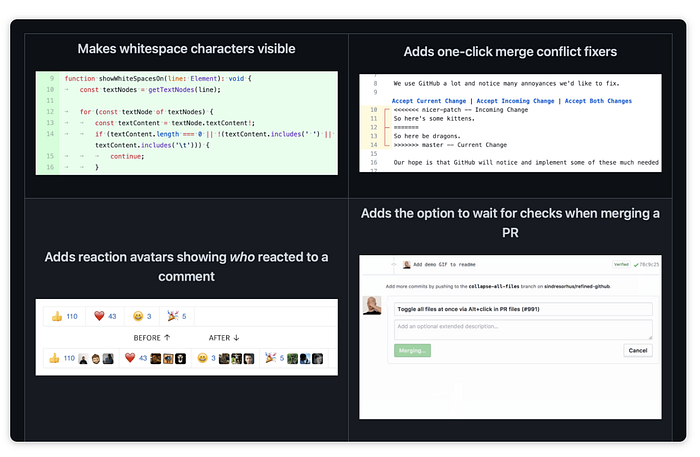

The extension enhances the GitHub UI with many thoughtful improvements that make everyday tasks easier. Some of the features I personally appreciate the most include:
- Making whitespace characters visible, which is incredibly helpful when reviewing code changes
- Adding a direct link back to the pull request that triggered a workflow
- Showing reaction avatars, so you can immediately see who reacted to a comment
- Automatically using the PR title as the default squash commit message, and updating the PR title if the commit title changes
And that's only a small portion of what it offers there are many other subtle improvements that make navigating GitHub smoother and more efficient.
The extension is available for Chrome, Firefox, and Safari, and installing it takes only a few seconds.
It's also open source, which makes it even better. If you're curious, you can explore the project and its features directly on GitHub.
P.S. Some of these features might already exist on GitHub today. I've been using Refined GitHub for quite a long time, so at this point it's hard for me to tell which improvements come from GitHub itself and which come from the extension.
2. Amphetamine
If you use a Mac especially with a multi-monitor setup you've probably experienced this frustration before. You step away for a moment, your Mac goes to sleep, and when you come back everything is rearranged: terminals moved, windows shifted, layouts broken.

It's one of those small annoyances that can completely interrupt your workflow.
That's where Amphetamine comes in.
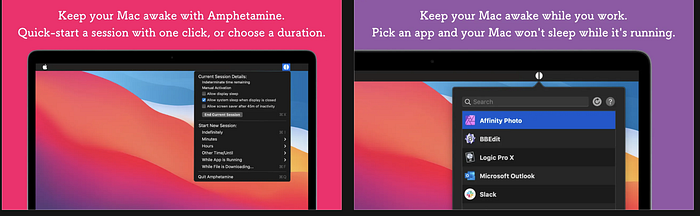
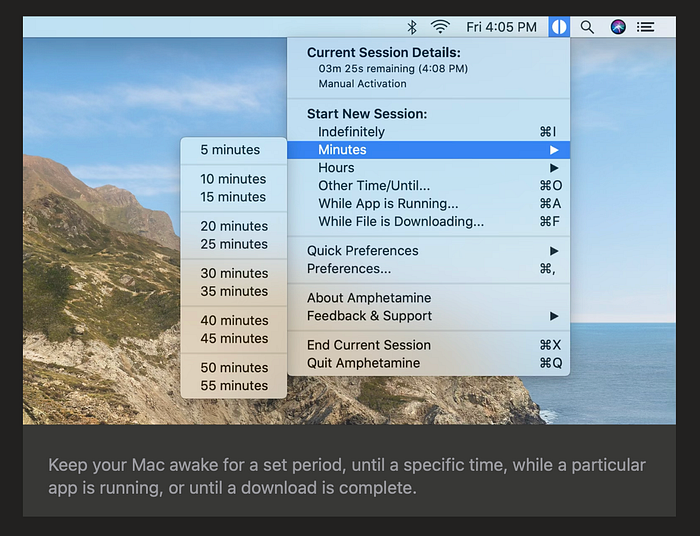
Amphetamine is a simple macOS utility that keeps your Mac awake whenever you need it. With a single on/off switch, you can prevent your computer and optionally its displays from going to sleep while you're working.
What makes it even better is that it can automate this behavior using triggers. For example, you can configure it to activate automatically when:
- you connect to a specific Wi-Fi network
- a certain application is running
- a display is connected
- or when your Mac is plugged into power
Once configured, you don't really have to think about it again it just quietly does its job in the background.
You can learn more about Amphetamine and download it directly from the Mac App Store.
Note: Amphetamine is only available for macOS, but there are similar tools available for Windows and Linux that provide the same functionality.
3. Lunar
If you work with external monitors on a Mac, you've probably noticed how limited the built-in display controls can be. Adjusting brightness or other settings on external screens often requires reaching for the monitor's physical buttons which quickly becomes annoying.
That's where Lunar becomes incredibly useful.
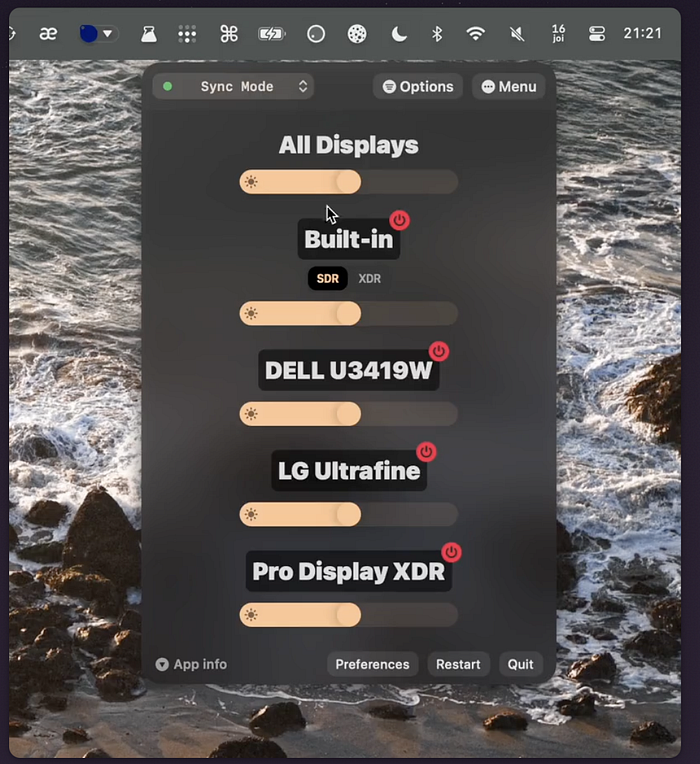
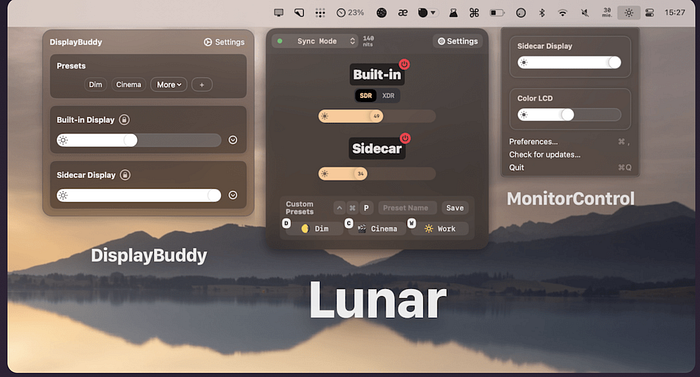
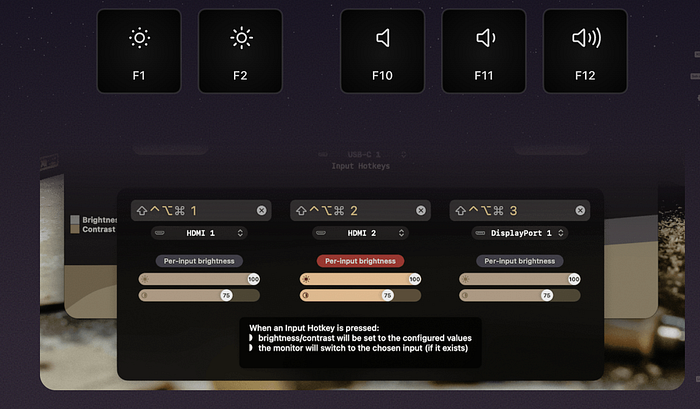
Lunar is a lightweight tool that lets you control the brightness, colors, volume, and input settings of your external monitors directly from macOS. Instead of manually adjusting your monitor every time the lighting changes, you can handle everything from your Mac.
One feature I especially appreciate is how easily you can adjust brightness depending on the surrounding light. Whether you're working during the day with strong sunlight or coding late at night, Lunar helps keep your display comfortable to look at.
It's a small tool, but it makes a noticeable difference especially when you spend many hours in front of a screen.
And honestly, anything that helps reduce eye strain is worth having.
You can learn more about Lunar and download it from their GitHub repository or from the official website.
Note: Lunar is currently available for macOS. However, there are similar alternatives for Windows and Linux that provide comparable monitor control features.
4. Rectangle
When you're working as a software engineer, your screen is usually filled with multiple windows terminals, editors, browsers, documentation, and maybe a few debugging tools. Managing all of them manually can quickly become messy.
That's where Rectangle becomes incredibly helpful.
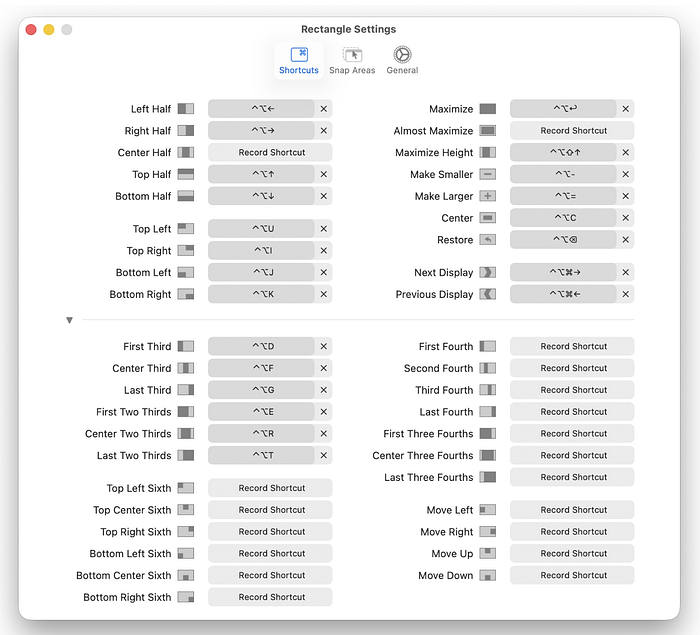
Rectangle is a macOS utility that allows you to move and resize windows using simple keyboard shortcuts or snap areas. Instead of dragging windows around with your mouse, you can instantly position them exactly where you want.
For example, you can quickly place windows:
- on the left or right half of the screen
- in the top or bottom sections
- in different grid layouts and sizes
With just a few shortcuts, you can organize your entire workspace in seconds. Once you get used to it, it becomes part of your muscle memory and makes multitasking much smoother.
When you're constantly switching between terminals, code editors, and browsers, a tool like this can give your workflow a surprisingly nice productivity boost.
You can learn more about Rectangle and download it from their GitHub repository or their official website.
Note: Rectangle is designed for macOS, but similar window management tools exist for Windows and Linux as well.
5. Maccy
Maccy is a simple but incredibly useful clipboard manager for macOS. Instead of only remembering the last thing you copied, it keeps a history of everything you copy, making it easy to find and reuse previous clipboard items.
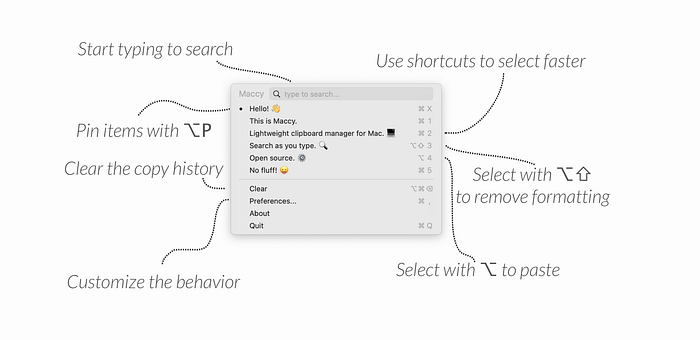
If you've ever copied several things in a row and then realized you needed something from earlier, you know how frustrating that can be. With Maccy, that problem basically disappears.
You can open Maccy at any time and quickly browse, search, and reuse items from your clipboard history. I personally use it almost every day whether it's to retrieve links, database IDs, snippets of text, or anything else I copied earlier.
It's one of those small tools that quietly saves you time throughout the day.
You can learn more about Maccy and download it from its GitHub repository or from the official website.
Note: Maccy is available for macOS. If you're on Windows or Linux, there are similar clipboard manager tools that offer comparable functionality.
6. Grammarly
Grammarly is a free AI-powered writing assistant that helps you check grammar, spelling, and overall clarity while you write.
Writing might not be the first thing people think about when they hear software engineering, but in reality, we write a lot every day documentation, pull request descriptions, commit messages, comments, emails, and technical discussions.
Clear communication matters just as much as clean code.
As a non-native English speaker, I've personally found Grammarly to be an extremely helpful tool. It helps catch small mistakes, improve sentence structure, and make writing clearer and more professional.
I often use it when writing documentation, messages, or even articles like this one. It's like having a small editor quietly helping you in the background.
You can learn more about Grammarly on their website and download it there. They also provide a Chrome extension, which makes it easy to use directly inside your browser while writing online.
I'm Really Glad You're Still Here
Thank you for taking the time to read this article from beginning to end. As developers, we're constantly learning and experimenting with new tools, and sometimes the smallest utilities can make the biggest difference in our daily workflow.
The six tools I shared here are not revolutionary or complex but they quietly remove friction from everyday tasks and help me focus more on what actually matters: building software and solving problems.
And of course, if you have your own favorite tools that make life easier as a developer, I'd love to hear about them.
Thanks again for reading.
Editor's Note:This story does not contain any affiliate links or paid promotions. The tools mentioned here are based entirely on my personal experience, research, and daily usage. I'm simply sharing the tools that genuinely help me stay more productive as a software engineer.