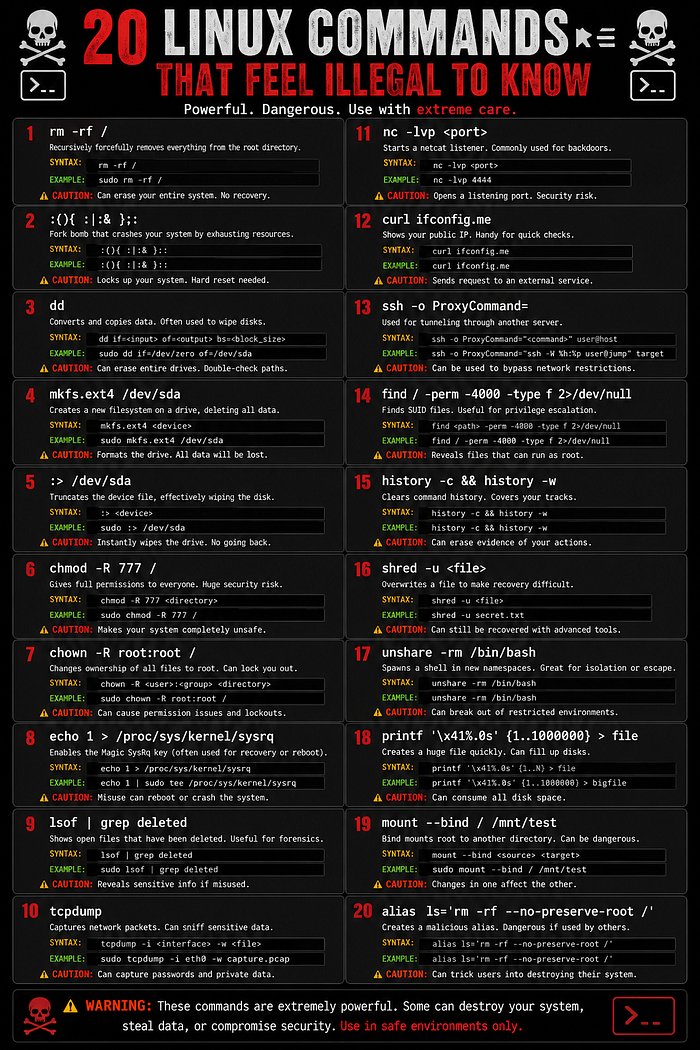
That is the beauty of it. That is also the danger.
The terminal gives you direct access to files, disks, processes, permissions, networks, logs, memory, and running services. One command can fix a broken server in seconds. One wrong command can destroy the same server just as fast.
This is not a beginner list of ls, cd, and pwd.
These are command that feel dangerous because they remove the soft padding between you and the machine. Some are destructive. Some are diagnostic. Some are quietly powerful. All of them teach you how Linux actually behaves under the hood.
Do not copy-paste the dangerous ones into your real system. Test them only inside a disposable virtual machine, lab container, or machine you can afford to break.
1. rm -rf / — The Command Every Linux User Learns to Fear
rm -rf /This is the classic nightmare command.
It tries to delete everything starting from the root directory.
To understand why it is dangerous, break it down:
rmrm means remove. It deletes files and directories.
-r-r means recursive. It tells rm to go inside directories and delete their contents too. Without this, rm normally refuses to delete directories.
-f-f means force. It removes files without asking for confirmation. It also ignores many warning prompts.
// is the root of the Linux filesystem. Everything lives under it: /home, /etc, /var, /usr, /boot, /root, and more.
So the command means:
Delete everything, go inside every folder, do not ask questions, and start from the root of the entire system.
Modern Linux systems usually protect against this exact command unless special flags are used, but the idea still matters. This command teaches one of the hardest Linux lessons:
Linux assumes you mean what you type.
A safer way to understand this command is to test it inside a throwaway directory:
mkdir test-delete
cd test-delete
touch file1 file2
cd ..
rm -rf test-delete
That is the same logic, but pointed at a harmless folder instead of the entire operating system.
2. :(){ :|:& };: — The Fork Bomb
:(){ :|:& };:This command looks like keyboard garbage.
It is not.
It is a fork bomb. It creates a function that keeps calling itself until the system runs out of process capacity.
Break it down:
:Here, : is being used as a function name. In shell scripting, function names can be weird.
()This declares a shell function.
{ ...; }Everything inside the braces is the function body.
:|:This calls the function twice and pipes one call into the other.
&This sends the process into the background, so the shell does not wait for it to finish.
;:After defining the function, this runs it.
The result is brutal: one process becomes two, two become four, four become eight, and the system quickly gets flooded with processes.
The machine may freeze, SSH may stop responding, and normal commands may fail because the system cannot create new processes.
This command is dangerous, but it teaches something important: process limits matter.
That is why real servers use controls like:
ulimit -uThis limits how many processes a user can create.
A fork bomb is not useful because it crashes systems. It is useful because it shows why production systems need resource limits, user quotas, and sane process controls.
3. dd — The Data Destroyer and Disk Surgeon
dd if=/dev/zero of=/dev/sdXdd is one of the most powerful Linux commands because it works at a very low level. It copies raw data from one place to another.
It does not care if the destination is a file, USB drive, partition, or full disk.
Break it down:
ddRuns the raw copying tool.
if=/dev/zeroif means input file.
/dev/zero is a special Linux device that produces endless zero bytes.
of=/dev/sdXof means output file.
/dev/sdX represents a disk. The X is a placeholder. On a real machine it may be /dev/sda, /dev/sdb, /dev/nvme0n1, or something similar.
So this command means:
Take endless zeros and write them directly onto a disk.
That wipes data.
A safer and more realistic use of dd is creating a bootable USB from an ISO:
sudo dd if=linux.iso of=/dev/sdX bs=4M status=progressNow break the extra parts down:
bs=4Mbs means block size. It controls how much data is copied at a time.
status=progressThis shows progress while the copy runs.
The dangerous part is always the output target. If you write to the wrong disk, you can overwrite your operating system or personal data.
Before using dd, always check disks with:
lsblkdd is not evil. It is precise. That is what makes it dangerous.
4. strace — Read What a Program Is Really Doing
strace ./your_programstrace shows the system calls made by a program.
In simple words, it lets you watch how a program talks to the Linux kernel.
Break it down:
straceRuns the tracing tool.
./your_programRuns a program from the current directory.
The ./ means "execute this file from here."
When you run this, you see calls like:
openat(...)
read(...)
write(...)
connect(...)
stat(...)
These show what the program is trying to open, read, write, connect to, or inspect.
This is useful when a program fails but gives a useless error.
Example:
strace -o trace.txt ./appBreakdown:
-o trace.txtSave the trace output into trace.txt instead of flooding the terminal.
You can then search it:
grep ENOENT trace.txtENOENT usually means "file or directory not found."
This helps answer questions like:
Which config file is missing?
Which library is not loading?
Which file permission is failing?
Which network call is hanging?
strace feels illegal because it removes the mystery. The program can lie in its error message, but its system calls tell the truth.
5. lsof — Find Who Is Holding a File or Port Hostage
lsof /path/to/filelsof means list open files.
Linux treats many things as files: normal files, directories, sockets, devices, pipes, and network connections.
Break it down:
lsofLists open files.
/path/to/fileThe file or directory you want to inspect.
This tells you which process is using that file.
Example:
lsof /var/log/syslogThis can show which process is writing to the system log.
Another powerful example:
lsof -i :8080Break it down:
-iShow network-related files.
:8080Filter by port 8080.
This answers a common server problem:
"What is already using this port?"
Instead of guessing, rebooting, or killing random processes, you can identify the exact process.
You may see output with a PID. Then you can inspect it:
ps -p 1234 -fOr stop it if it is safe:
kill 1234lsof is dangerous only because it gives clarity. Once you know exactly what process is responsible, you stop troubleshooting blindly.
6. nc — Netcat, the Raw Network Knife
nc -l 9000nc, also called Netcat, is one of the simplest ways to talk over the network from the terminal.
It can listen on ports, connect to ports, send text, receive text, transfer data, and debug services.
Break it down:
ncRuns Netcat.
-lListen mode. This makes your machine wait for an incoming connection.
9000The port number to listen on.
So this command opens a listener on port 9000.
On another machine, you could connect to it:
nc host 9000Breakdown:
hostThe hostname or IP address of the machine running the listener.
9000The port to connect to.
The article example also shows file transfer:
nc host 9000 < file.txtBreak it down:
<This redirects the contents of file.txt into the Netcat connection.
That means the file contents are sent over the network to the listening side.
For defensive and admin work, Netcat is useful for checking if a port is reachable:
nc -vz example.com 443Breakdown:
-vVerbose output.
-zZero-I/O scan mode. It checks the connection without sending data.
443HTTPS port.
Netcat feels dangerous because it strips networking down to the raw basics. No browser. No GUI. No framework. Just host, port, input, and output.
Use it only on systems and networks where you have permission.
7. watch — Turn Any Command Into a Live Monitor
watch -n 1 df -hwatch repeats a command again and again at a fixed interval.
Break it down:
watchRuns another command repeatedly.
-n 1Run it every 1 second.
df -hShow disk filesystem usage in human-readable format.
Inside df -h:
dfShows mounted filesystems and disk usage.
-hHuman-readable output, such as 1G, 500M, or 40K.
So the full command means:
Show disk usage every second.
This is useful when you are watching a log directory grow, checking if a backup is filling disk space, or monitoring a system during a heavy operation.
More examples:
watch -n 2 free -hShows memory usage every two seconds.
watch -n 1 "ls -lh"Shows directory changes every second.
watch -n 5 "systemctl status nginx"Checks service status every five seconds.
The dangerous part is not destruction. The power is visibility.
watch turns a static command into a live dashboard without writing a script.
8. xargs — Turn Text Into Action
cat files.txt | xargs rmxargs takes input and converts it into command arguments.
That sounds boring until you realize it lets you operate on hundreds or thousands of items at once.
Break it down:
cat files.txtPrints the contents of files.txt.
|The pipe sends the output of the left command into the input of the right command.
xargsTakes incoming text and builds command arguments from it.
rmDeletes the files passed by xargs.
So if files.txt contains:
old1.log
old2.log
old3.log
The command becomes roughly:
rm old1.log old2.log old3.logThat is powerful. It is also dangerous.
A safer version is:
cat files.txt | xargs -p rmBreakdown:
-pPrompt before running the command.
Another safer pattern:
cat files.txt | xargs -r rmBreakdown:
-rDo nothing if the input is empty. This avoids running the command accidentally with no arguments.
A very common real-world pattern:
find . -name "*.tmp" -print0 | xargs -0 rmBreak it down:
find .Search from the current directory.
-name "*.tmp"Find files ending in .tmp.
-print0Separate results with a null character instead of spaces or new lines. This handles filenames with spaces safely.
xargs -0Read null-separated input.
xargs is where shell pipelines start feeling like programming.
9. sed — Edit Files Without Opening Them
sed -i 's/localhost/127.0.0.1/g' *.confsed is a stream editor. It can search, replace, delete, print, and transform text from the command line.
Break it down:
sedRuns the stream editor.
-iEdit files in place. This means the file is changed directly.
's/localhost/127.0.0.1/g'This is the substitution expression.
Inside it:
sSubstitute.
localhostThe text to search for.
127.0.0.1The replacement text.
gGlobal replacement on each line. Without g, only the first match on each line is replaced.
*.confApply this to every .conf file in the current directory.
So the full command means:
In every .conf file here, replace all occurrences of localhost with 127.0.0.1.
This is useful for config updates, mass refactors, log cleanup, and text transformation.
The dangerous part is -i.
Without -i, sed prints the changed output but does not modify the file:
sed 's/localhost/127.0.0.1/g' app.confThat is safer for testing.
A better production habit is to create backups:
sed -i.bak 's/localhost/127.0.0.1/g' *.confThis creates backup files ending in .bak.
sed is powerful because it can change hundreds of files in one line. That is exactly why you should test the pattern before using -i.
10. awk — The Hidden Programming Language in Your Terminal
awk '{print $1, $3}' data.txtawk is not just a command. It is a small programming language built for text processing.
Break it down:
awkRuns the AWK interpreter.
'{print $1, $3}'This is the AWK program.
Inside it:
printPrint output.
$1The first field in the line.
$3The third field in the line.
data.txtThe file to process.
By default, AWK splits each line by whitespace.
If data.txt contains:
john admin active
maya user disabled
raj dev active
This command prints:
john active
maya disabled
raj active
You can also use AWK with command output:
ps aux | awk '{print $1, $2, $11}'This prints selected columns from the process list.
For CSV-style files, you can set the field separator:
awk -F, '{print $1, $3}' users.csvBreakdown:
-F,Use comma as the field separator.
AWK is dangerous in a good way. Once you understand fields, patterns, and actions, you can parse logs, extract columns, generate reports, and transform data without writing a full script.
11. nohup — Keep a Command Alive After You Leave
nohup ./script.sh &nohup lets a process keep running even after you close the terminal or disconnect from SSH.
Break it down:
nohupMeans "no hangup." It prevents the command from being stopped when the terminal session ends.
./script.shRuns a script from the current directory.
&Runs the command in the background.
So the full command means:
Start this script, detach it from terminal hangups, and run it in the background.
By default, output usually goes into:
nohup.outA cleaner version:
nohup ./backup.sh > backup.log 2>&1 &Breakdown:
> backup.logSend normal output to backup.log.
2>&1Send error output to the same place as normal output.
&Run in the background.
This is useful for backups, long-running scripts, data processing, remote jobs, and maintenance tasks.
The danger is forgetting what you started.
Check background jobs with:
jobsFind the process with:
ps aux | grep backup.shStop it with:
kill PIDnohup feels powerful because it breaks the connection between your terminal window and the running work.
12. htop — See the System Breathing
htophtop is an interactive process viewer.
It is like top, but easier to read and easier to control.
Break it down:
htopLaunches the interactive system monitor.
Inside htop, you can see:
CPU usage
Memory usage
Swap usage
Running processes
Process IDs
Command names
User ownership
CPU and memory percentage
Load average
Uptime
Useful keys:
F3Search for a process.
F6Sort by a column.
F9Kill a selected process.
qQuit.
This command is not dangerous by itself, but it gives you direct control over running processes. You can kill the wrong thing if you are careless.
For example, killing a database process, SSH daemon, or system service can break active users or production workloads.
htop is powerful because it gives you an honest live view of what the machine is doing.
When a server feels slow, htop is often the first command worth running.
13. du -sh * — Find What Is Eating Disk Space
du -sh *This command shows the size of everything in the current directory.
Break it down:
duDisk usage. It estimates file and directory sizes.
-sSummary mode. Show only the total for each item, not every file inside it.
-hHuman-readable output. Show sizes like 10K, 45M, or 3.2G.
*Shell wildcard for everything in the current directory.
So the full command means:
Show the total size of each file and folder here, in readable units.
Example output:
4.0K    notes.txt
250M    logs
1.8G    backups
12G     docker-data
This immediately shows where storage is going.
A more aggressive version:
du -ah . | sort -rh | head -20Breakdown:
-aShow files and directories.
sort -rhSort by human-readable size, biggest first.
head -20Show the top 20 results.
Disk problems are common on Linux servers. Logs grow. Containers grow. Cache folders grow. Backups pile up.
du -sh * gives you the answer fast.
14. chmod 755 script.sh — Permissions Without Guessing
chmod 755 script.shchmod changes file permissions.
Break it down:
chmodChange mode. This changes who can read, write, or execute a file.
755The numeric permission mode.
script.shThe file being changed.
Now decode 755.
Linux permissions are usually split into three groups:
Owner
Group
Others
Each digit controls one group.
7Owner permissions.
7 means read + write + execute.
5Group permissions.
5 means read + execute.
5Others permissions.
5 means read + execute.
The numbers come from:
4 = read
2 = write
1 = execute
So:
7 = 4 + 2 + 1 = read + write + execute
5 = 4 + 1 = read + execute
That means chmod 755 script.sh gives:
Owner: can read, write, execute
Group: can read, execute
Others: can read, execute
This is common for scripts:
chmod 755 deploy.sh
./deploy.sh
But permissions can become dangerous.
Too strict, and your app breaks.
Too open, and you create a security problem.
chmod feels cryptic until the numbers click. After that, permissions become surgical.
15. history | grep — Search Your Past Commands
history | grep dockerThis command searches your shell history for previous commands containing a word.
Break it down:
historyPrints commands you have run before.
|Sends the output into the next command.
grep dockerFilters lines containing docker.
So the full command means:
Show me old commands that contained the word docker.
This is extremely useful when you remember solving a problem before but cannot remember the exact command.
Examples:
history | grep sshFind old SSH commands.
history | grep rsyncFind old sync commands.
history | grep systemctlFind old service commands.
The command becomes more valuable the longer you use Linux.
Your history becomes a personal troubleshooting database.
One warning: shell history may contain sensitive data if you typed secrets directly into commands.
Check for mistakes like:
history | grep password
history | grep token
history | grep key
If needed, remove sensitive history entries or clear the history properly.
A good Linux habit is simple:
Never type secrets directly into terminal commands if they will be saved in history.
16. mkfs.ext4 /dev/sdX1 — Format a Partition Into a Filesystem
mkfs.ext4 /dev/sdX1This command creates an ext4 filesystem on a partition.
That also means it destroys the existing filesystem metadata on that partition.
Break it down:
mkfs.ext4Make filesystem, ext4 type.
Ext4 is a common Linux filesystem.
/dev/sdX1The target partition.
sdX1 is a placeholder. A real partition might look like:
/dev/sdb1
/dev/sdc1
/dev/nvme0n1p1
This command is useful when preparing a new USB drive, disk partition, lab drive, or server volume.
But if you point it at the wrong partition, your data is gone.
Before formatting anything, check with:
lsblkThis shows disks, partitions, sizes, and mount points.
Also check mounted filesystems:
df -hA typical safe workflow looks like this:
lsblk
sudo umount /dev/sdX1
sudo mkfs.ext4 /dev/sdX1
Breakdown:
umountUnmounts the partition before formatting.
Do not confuse it with unmount. The Linux command is umount.
mkfs.ext4 is not a command to experiment with on your main machine. It is a disk-formatting tool. Treat it like a blade.
17. shred -vzn 3 secret.txt — Destroy a File Properly
shred -vzn 3 secret.txtshred overwrites a file to make recovery harder.
Normal deletion usually removes the file reference, not necessarily the underlying data immediately. shred tries to overwrite the file contents before removing it.
Break it down:
shredRuns the secure overwrite tool.
-vVerbose mode. Show progress.
-zAdd a final overwrite with zeros. This hides the random overwrite pattern.
-n 3Overwrite the file 3 times.
secret.txtThe target file.
If you want to remove the file after overwriting, use:
shred -uvzn 3 secret.txtExtra breakdown:
-uRemove the file after overwriting it.
shred is useful for sensitive files, temporary secrets, private notes, exported keys, and lab cleanup.
But there is a catch.
On SSDs, journaling filesystems, copy-on-write filesystems, cloud disks, and snapshots, secure deletion is complicated. The data may still exist somewhere else due to wear leveling, backups, filesystem journals, or snapshots.
So shred is powerful, but not magic.
For extremely sensitive data, encryption before storage is better than trying to destroy data later.
The dangerous part is obvious: when shred -u finishes, the file is intentionally gone.
18. chmod -R 777 / — The Permission Disaster
chmod -R 777 /This command is one of the fastest ways to ruin a Linux system without deleting files.
Break it down:
chmodChange permissions.
-RRecursive. Apply the permission change to everything inside every directory.
777Give read, write, and execute permission to owner, group, and everyone else.
/Start from the root of the filesystem.
So the full command means:
Give everyone full access to everything on the system.
That sounds convenient for about five seconds. Then the damage becomes clear.
System files become writable by users who should not touch them.
Security boundaries collapse.
SSH may reject unsafe permissions.
Services may refuse to start.
Sensitive directories become exposed.
Executables and scripts become writable.
A Linux system depends heavily on correct permissions. Changing them globally is not a fix. It is a system-wide permission explosion.
The safe version is to target only what you actually need:
chmod 755 script.shOr for a directory you own:
chmod -R u+rwX,g+rX,o-rwx project/Breakdown:
u+rwXOwner gets read, write, and execute only where appropriate.
g+rXGroup gets read and directory traversal.
o-rwxOthers lose all permissions.
Never use chmod -R 777 / on a real system.
It does not make Linux easier. It makes Linux unsafe.
19. kill -9 -1 — Kill Everything You Are Allowed to Kill
kill -9 -1This command sends a force-kill signal to processes.
Break it down:
killSends a signal to a process.
Despite the name, kill does not always kill. It sends signals. Some signals ask processes to reload, stop, continue, terminate, or die immediately.
-9Signal 9, also called SIGKILL.
This is the hard kill signal. The process does not get time to clean up, save state, close files politely, or handle shutdown logic.
-1As a process target, -1 means all processes the user is allowed to signal, except some protected ones.
So this command means:
Force-kill every process this user is allowed to kill.
On a normal user account, this can kill your session, apps, shell jobs, background scripts, and user services.
With elevated privileges, it can cause serious disruption.
A safer process-killing workflow is:
ps aux | grep process_name
kill PID
First send a normal termination signal:
kill 1234Only use -9 if the process refuses to stop:
kill -9 1234SIGKILL is the hammer. Sometimes you need it. Most of the time, you should try the door handle first.
20. rsync -a --delete source/ destination/ — The Backup Command That Can Erase Your Backup
rsync -a --delete source/ destination/rsync is one of the best file synchronization tools on Linux.
It copies only what changed, preserves metadata, supports remote systems, and is excellent for backups and deployments.
But --delete makes it dangerous.
Break it down:
rsyncRuns the synchronization tool.
-aArchive mode.
This preserves permissions, timestamps, symbolic links, and directory structure.
--deleteDelete files from the destination if they do not exist in the source.
source/The folder you are copying from.
The trailing slash matters.
destination/The folder you are copying into.
So the command means:
Make destination/ match source/, and delete anything in destination/ that is not present in source/.
That is perfect for mirrors.
It is terrifying for backups if you reverse the source and destination.
Example:
rsync -a --delete website/ backup/This makes backup/ match website/.
But if website/ is empty because of a mistake, backup/ can be emptied too.
Before using --delete, run a dry run:
rsync -a --delete --dry-run source/ destination/Breakdown:
--dry-runShow what would happen without actually changing anything.
For more visibility:
rsync -av --delete --dry-run source/ destination/Extra breakdown:
-vVerbose output.
rsync --delete is not a bad command. It is a serious command.
Used carefully, it is one of the best tools for deployments, mirrors, and clean backups.
Used carelessly, it can synchronize your mistake perfectly.