


As MKBHD says, I have been using the beta version of iOS 26 on my iPhone for the past couple of months.
Now that iOS 26 has been officially released to all supported iPhones, it's the perfect time to share some of the new features that make your iPhone more useful than ever.
These past couple of months gave me enough time to explore some 200+ (?!) new features that Apple has added to the iOS 26 update and pick 14 of them that made a noticeable difference in my daily routine and made my iPhone much more useful and valuable than before.
Let's get into it.
#1 Finally, Someone Else Can Listen to Hold Music
This is one of the very first features I accidentally discovered during my initial days playing around with iOS 26. I had ordered something from a random website I found in an Instagram ad (yes, I have an addiction), and as I feared, the product did not get delivered even after 2 weeks of placing the order.
Somehow, I dug through their website and found their contact number and called them with the full intention of bashing them for the delay and asking them for a refund.
As expected, I was just greeted with a robotic voice and an annoying hold music. Just when I was about to give up and hang up the call, I noticed that my iPhone helpfully asked me, "Can I hold this call for you?"
After this, you just click on the 'hold' button and can go on about your day. Your iPhone will continue to listen to the hold music, and as soon as it detects a human speaking, it will alert you with an incoming call.
This feature in iOS 26 has certainly made my iPhone a lot more useful and has encouraged me to make more customer care calls whenever I have an issue, rather than dreading the hold music and the long wait times.
#2 Text Your Way Out of Awkward Calls
Another new cool feature added to the Phone app in iOS 26 is the ability to let your iPhone talk to an incoming caller in a pleasant robotic voice.
As an introvert, I love this feature, and I wish it were available during my job hunting days, when I was forced to take every incoming call from an unknown number, hoping it was from a potential employer.
What it basically does is show you an option to reply to calls from unknown numbers without actually picking up the call by either selecting a predefined response like 'I'll call you later' or actually typing and sending any response you want. The caller on the other side will then hear a kind of friendly robotic voice telling them exactly what you typed.

For this to work, you must first enable the 'Screen Unknown Callers' in the Settings app for the Phone app. Select the 'Ask Reason for Calling' option, which prompts the caller to explain why they are calling you. Your phone will ring only after they respond, displaying the message on your screen.
You can now choose to pick up the phone or let the robot handle the call if you are not in the mood.
#3 When Your iPhone Plays Bouncer
As someone who hands out their phone number to anyone who asks for it, like handing out candy during Halloween, I really appreciate this feature.
Plus, in my city, whenever you make a physical purchase, they ask for your phone number as if you owe it to them, claiming they'll use it to send you an e-invoice or give you rewards points.
Since I have a medically recognized condition of being unable to say no, I give out my phone number without hesitation.
As you would expect, I receive more annoying spam messages than the average person (not something to be proud of), and that's why I love this feature. In iOS 26, your iPhone comes with an on-device spam protection feature that works for both messages and phone calls.

You can enable the spam filter from the Messages settings page in the Settings app, and your iPhone will automatically filter any incoming spam message and move it to a separate list without even bothering you with a notification.
Of course, it may sometimes filter legitimate messages as spam. In that case, you can view the message by clicking the Filter icon at the top right of the Messages app and opening the Spam folder.
From here, select the message you think is legit and tap 'Not Spam.' You can then move the message to your inbox and report to Apple that it's not spam, so that in the future your iPhone won't flag such messages.
#4 Your Karaoke Upgrade Is Here
Apple Music is probably the app I use the most on my iPhone. As someone who listens to a lot of songs outside of the ones in my native language, I really appreciate the new lyrics translation feature introduced to the Apple Music app in iOS 26.
Now, when you listen to a song that is not in English, the Apple Music app will show a translate icon in the live lyrics page, and when you click on it, it will show you the translated lyrics right below the original ones. Some songs also help with pronunciation, so you don't think you are a professional singer, even though you are just singing gibberish.

You don't have to enable any setting as this feature is available by default, and as of now, is supported for the following languages:
English to Chinese (Simplified), English to Japanese, Korean to Chinese (Simplified), Korean to English, Korean to Japanese, and Spanish to English.
Pronunciation available for select songs in the following scripts: Japanese to Romanized, Korean to Romanized, Korean to Katakana, Cantonese to Jyutping, Chinese (Simplified) to Pinyin, Chinese (Traditional) to Pinyin, Hindi to Romanized, and Punjabi to Romanized.
#5 Podcasts That Do Not Sound Like They Were Recorded in a Bathroom
I have been spending a lot of time listening to new Podcast shows lately, especially during my commute when I am in learning mode and not vibing.
While I am very picky about what I spend an hour listening to, and even though the content in most of the shows I listen to is golden, not everyone has a $1000 mic setup like my man MKBHD. It gets especially worse when they have a guest on the show who chooses to talk through the mic on his cellphone from 2012.
I guess someone at Apple was also facing the same issue, and since they are in a position actually to do something about it, they went on and introduced a new option called 'Enhance Dialogue' in the Podcast app in iOS 26.

It works similarly to the same option we have been enjoying in the Apple TV app. It primarily focuses on your voice and what you are saying, minimizing background noise, and it works surprisingly well so far in the episodes I have listened to.
To enable this, tap the playback speed button in the player page of any podcast you are listening to, then tap 'Enhance dialogue.'
#6 Rain on Roof > Construction Noise
I am a very light sleeper and a frequent mid-afternoon nap taker, both of which don't help the fact that there is some or other loud construction work constantly going on in my neighbourhood throughout the year.
While I have tried the Apple Music sleep playlists in the past, I don't like that the music in the playlist is not in the same rhythm, and that can sometimes disrupt your sleep.
Luckily, my iPhone can also double as a continuous white noise or rain sound-generating machine, thanks to the Background Sounds feature in the Accessibility menu.

This feature has been further improved in the iOS 26 update to include many new sounds, with my personal favorite being 'Rain on Roof.' You also now get a powerful equalizer, allowing you to customize the tone and balance of the sound entirely, and a timer that can be configured to stop the background sounds automatically at a specified time.
As always, you can use and customize the Background sounds feature by adding it to the control center page.
#7 Your AirPods Just Became a Selfie Stick
I am very tall at 189cm, and because of this, I am often used as a human selfie stick by my friends whenever there is a get-together, even though I hate taking selfies.
Thanks to a new feature in iOS 26 and my iPhone 13 Pro Max's ability to stand upright without any support because of its squared edges, I can now use my AirPods Pro as a camera remote to take photos using my iPhone.

To use the Camera Remote feature, simply enable the option in the AirPods Pro settings page. You can then choose between pressing the stem once or holding it to take a photo or start or stop a video recording when the camera app is open on your iPhone.
During other times, you can continue using the stems to control media playback, switch between listening modes, or trigger Siri as usual.
#8 Your iPhone Knows When Your Lens Is Gross
Given that many people are placing their iPhones everywhere, from dusty couches to wash basins in toilets, smudging the camera lens to the point where all photos look like they are from 2008, I am surprised Apple didn't introduce this feature sooner.
But it looks like they have decided that only people with an iPhone 15 or newer deserve to get notified when their camera lens is smudged. I'm puzzled by the existence of this discrimination, given that certain Samsung and Google Pixel phones, along with many Android phones with custom OSs, have had this feature for years.
Anyway, this feature basically shows a little tool tip when you open the camera app, asking you to 'Clean the Camera lens.'
Better late than never, I guess.
#9 Video Search, But Actually Useful
This is one of the coolest features I have discovered in the iOS 26 update so far. Basically, when you now search for something on the Photos app, let's say 'running', the app will now not only return video results where the specified action or text is present, but will also highlight and show the exact frame in that video that matched the result in the thumbnail in the search results.

The best part is that when you open the video from the search results, it automatically plays from the highlighted frame, so you don't have to spend the next 10 minutes figuring out where exactly the frame you are looking for is in a video that is an hour long.
I find it fascinating that the iPhone can do this almost instantly and with such high accuracy, even if it doesn't support Apple Intelligence.
#10 Screenshots That Work Smarter
Before iOS 26, you had to open the Photos app every time you wanted to select or copy some text in a screenshot you took. Starting from iOS 26, you can do it directly from the screenshot preview page, right after you take the screenshot.

While this isn't a groundbreaking innovation, it helps you save a few seconds here and there, especially if you delete a lot of screenshots after taking them. This way, your Photos app doesn't look like a museum of screenshots you'll never look at again.
#11 Turn Websites Into Fake Apps
Web apps in Safari have got a significant new upgrade in iOS 26. You can now basically turn any web page in Safari into a dedicated web app on your iPhone.

You can add the app icon to your iPhone home screen, and it will look and act like any other traditional app on your iPhone, opening in full-screen layout and appearing in the App Switcher.
#12 Finally, Apple Maps Understands Human Language
I have always wanted to be able to ask my Maps app to show me restaurants near me with a dark aesthetic vibe, and with iOS 26, it is finally becoming possible in the Apple Maps app.
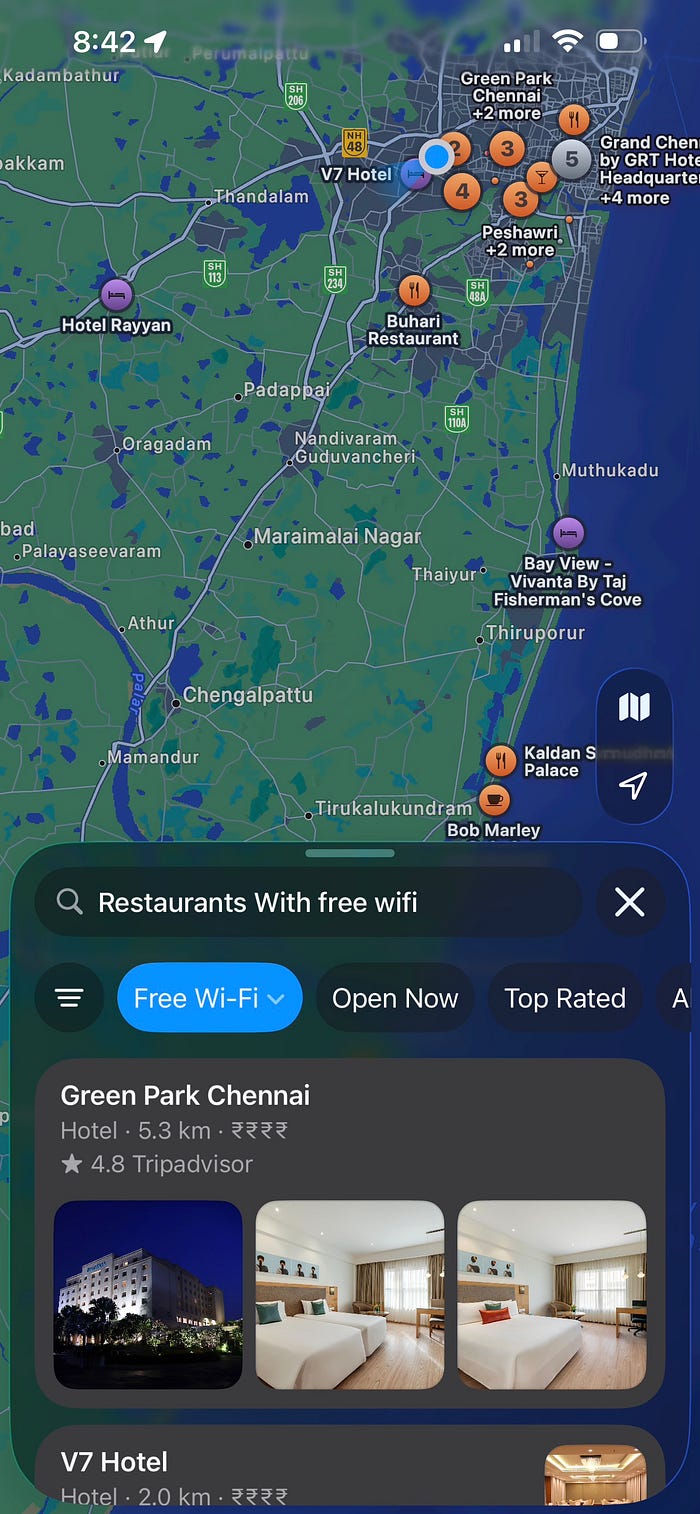
You can now enter natural language search queries into the search bar in the Maps app, like 'restaurants with free WiFi,' and it will search through the names and descriptions of the restaurant listings in your location and apply the relevant filters to show you the most appropriate results.
#13 No More Pretending You Did Not Hear Someone
One of the coolest and probably the most useful Accessibility features added to the iOS 26 update is the Name Recognition feature, which basically lets your iPhone send you an alert when it hears someone mentioning your name.

While it is originally intended to help people who are hard of hearing to know when someone is calling or mentioning their name, I fully plan on using it to immerse myself in the noise cancellation world of my AirPods Pro without worrying if I would miss someone calling out my name.
You can set it up from the Sound & Name Recognition page under Accessibility settings in the Settings app on your iPhone.
#14 Battery Life That Actually Tries
I'm disappointed that this feature is only supported on iPhone 15 Pro or newer models. Still, I am excited that Apple has finally decided to add a feature solely focused on improving the battery life of your iPhone.
Once enabled, the Adaptive Power feature in iOS 26 automatically performs certain activities, such as lowering screen brightness, allocating fewer resources to background processes, or activating low power mode, to extend battery life as much as possible.
This will be automatically triggered either when your iPhone's battery level is too low or if your iPhone usage is higher than typical. Don't worry, it is smart enough not to throttle device performance when it's actually required, like when you are recording a ProRes video or playing a game.
While I personally don't have an iPhone that supports the Adaptive Power feature, I have seen some users on Reddit reporting that they have at least seen an extra hour of battery life than normal when they are using this feature, and that is undoubtedly excellent news.
Well, that's it; I've covered all the cool new features in iOS 26 that I think genuinely make your iPhone more useful.
But make no mistake, there are still a ton of new features that might not be as useful on a typical day as the ones in this post, but are still in some way improving your iPhone experience.
If you're interested in learning more about them and the new features Apple has added to macOS 26, iPadOS 26, watchOS 26, and tvOS 26, be sure to follow my page, The Useful Tech, for more useful tech coverage on the OS 26 updates from Apple this year.