


I am not going to lie. The idea of paying monthly for an app used to physically hurt me. I grew up in a world where you paid once, and the app was yours forever, and switching to a subscription model felt like paying rent for something I should own.
But over the past couple of years, I have come around to the truth that some apps earn their subscription because they solve a specific daily friction so well that going back to life without them is genuinely painful.
These are the 10 apps I pay for happily. I use every single one of them as part of my daily workflow, and they have collectively saved me more time and frustration than I can quantify.
Before I get into the list, a quick note. I recently launched The Useful Tech Club, a private membership for Apple power users and creators who want more than surface-level tips. For $20/month, you get 23+ member-only benefits, including private app ratings I would never publish publicly, personal device setup reviews, monthly earnings breakdowns with actual screenshots, creator templates, free and heavily discounted digital products, and direct access to me for any question you have about Apple devices or building a content business.
Everything I have learned from 6 years, 361+ articles, and building an $8,000/month creator business is available exclusively to members. No generic stuff. The first 50 Founding Members get their $20/month price locked in for life, and once those spots fill up, the price goes up permanently.
Join The Useful Tech Club →
#1 CleanShot X — The app that made me enjoy taking screenshots
On an average day, I take somewhere between 20 to 30 screenshots, a couple of screen recordings, and at least a few scrolling screenshots. That is not an exaggeration. Writing about apps for a living means capturing a lot of screens, and the built-in macOS screenshot tool was never designed for someone doing this at scale.
CleanShot X is worth it for the scrolling capture feature alone. It lets you take screenshots of entire web pages, lengthy documents, and long menus by simply scrolling the screen while the app stitches everything together into one seamless image. Before CleanShot X, I had to use separate apps or online tools to do most of these things individually. Being able to do everything inside a single app, with my exact workflow saved as a template, has saved me a ridiculous amount of time.
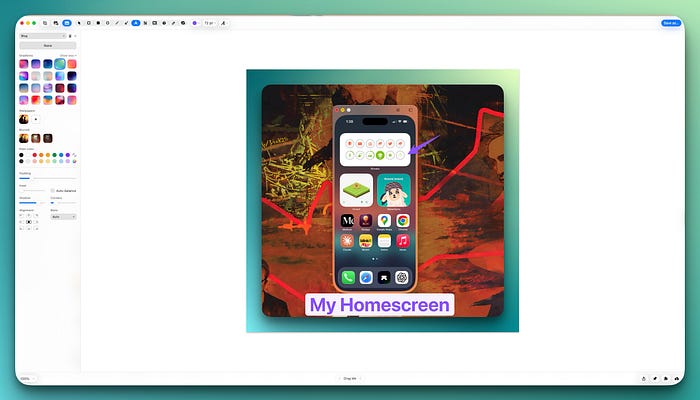
I have a saved template for my blog post screenshots that adds a custom background and padding around the screenshot, making it look clean and presentable when I embed it in a post. Every time I take a screenshot for a blog post, I apply the template in a single click, and it is ready to go. It all happens within CleanShot X without needing to use any other app.
The annotation features are excellent, too. I regularly add text labels, arrows, numbers, and highlights directly onto screenshots to draw readers' attention to specific areas. When you are writing an app review, and you need to point out exactly where a button is, having these tools built right into the screenshot app instead of opening a separate editor makes a massive difference.
I also love the smaller details that add up. You can customize keyboard shortcuts to trigger any capture mode instantly. The app hides your desktop icons automatically when you take a screenshot, and it can freeze the screen when a screenshot is triggered, which is incredibly useful when you are trying to capture something that is dynamically changing on screen, like a dropdown menu that disappears the moment you move your mouse.
#2 Paste — Everything you have ever copied, forever
Paste is one of my most-used apps on my Mac, and I am not sure how I survived without it. I use it several times a day to pull up things I copied from various websites and apps throughout the day. The thing about clipboard history is that you never think you need it until you accidentally copy something new and lose the thing you copied five minutes ago. That does not happen anymore.
Paste has a powerful search feature that lets me find any image, text, or URL I would have copied at any point during the day or even the week. The history lasts for several months, so even if I copied a link two weeks ago and forgot to save it anywhere, I can still dig it up.
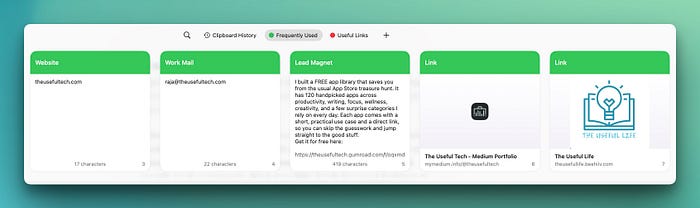
The pinning feature is what makes this app essential for me, though. I have my email signatures, frequently used reference links, my website URL, my home address, and even my phone number pinned as permanent clipboard items. Whenever I am filling out a form or composing an email and need any of these, I pull up Paste and grab it in a second. It sounds like a small thing, but when you do it ten times a day, the time savings are real.
#3 PopClip — The invisible assistant living inside your cursor
PopClip is one of those invisible apps that does its job so quietly you forget it is running until someone borrows your Mac and you realize how much you rely on it.
Whenever I am writing, and I select a chunk of text, PopClip immediately shows me stats about it, like the word count, character count, number of lines, and other useful details. For someone who writes blog posts with specific word count targets, this is incredibly handy because I don't have to go to a separate tool every time I want to check where I am at.
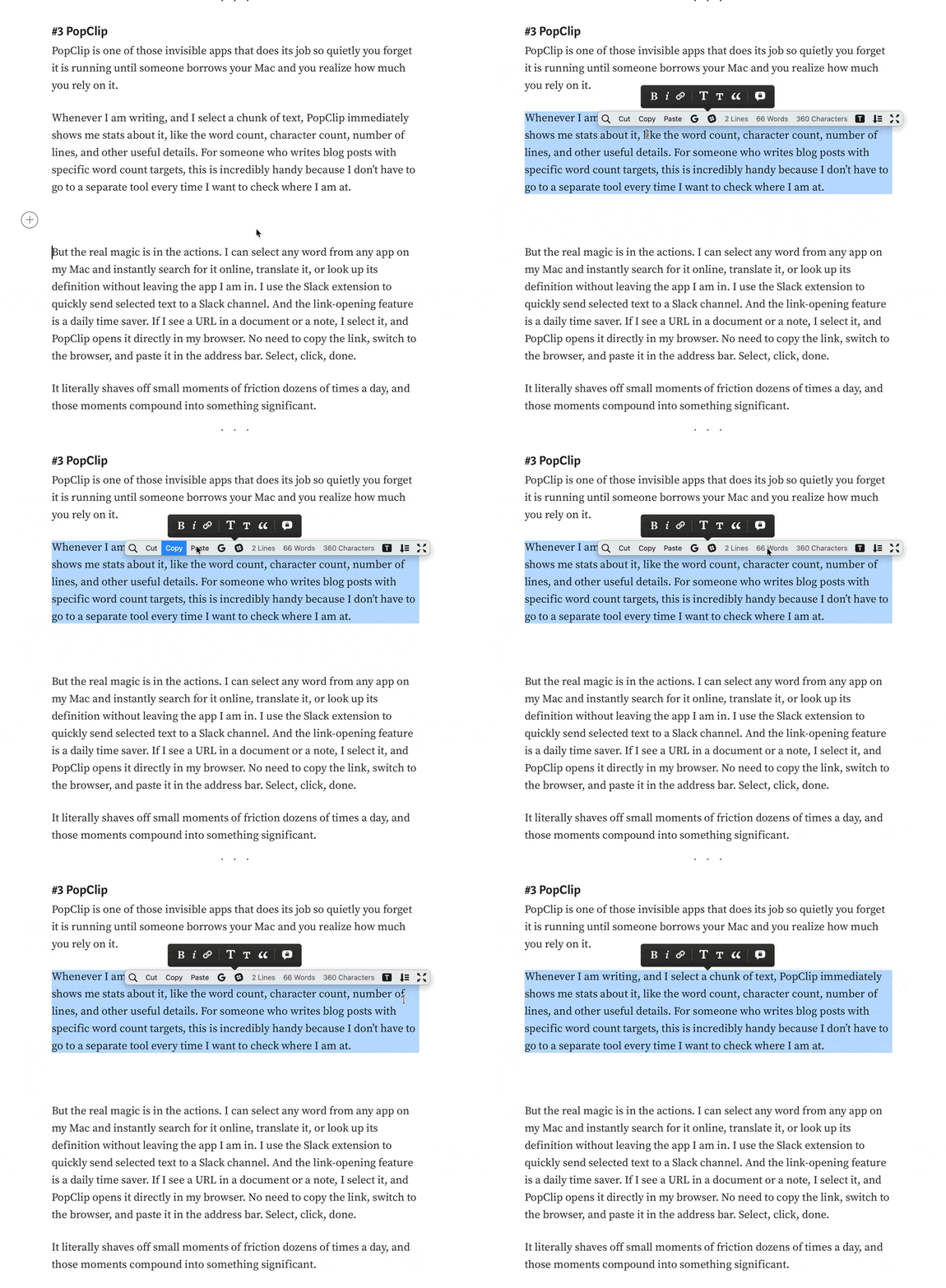
But the real magic is in the actions. I can select any word from any app on my Mac and instantly search for it online, translate it, or look up its definition without leaving the app I am in. I use the Slack extension to quickly send selected text to a Slack channel. And the link-opening feature is a daily time saver. If I see a URL in a document or a note, I select it, and PopClip opens it directly in my browser. No need to copy the link, switch to the browser, and paste it in the address bar. Select, click, done.
It literally shaves off small moments of friction dozens of times a day, and those moments compound into something significant.
#4 Spark Mail — Three inboxes, zero chaos
I use Spark Mail to manage three separate email accounts: my personal account, my work account, and a third account I use exclusively for subscribing to newsletters. Keeping that third account specifically for newsletter subscriptions is how I keep my other two inboxes clean and manageable, and Spark makes juggling all three of them effortless.
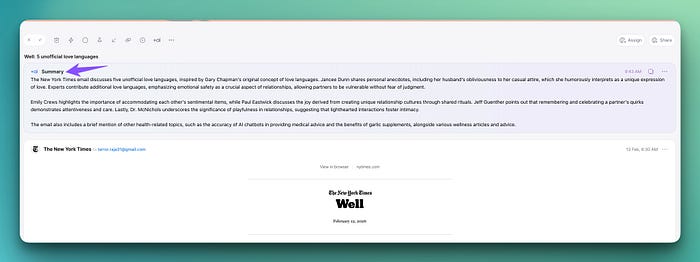
The AI features are genuinely useful. I use the AI summarization to quickly get through lengthy newsletters without reading every paragraph, which saves me a solid chunk of time each week. I also use the AI composer occasionally when I need to draft a quick professional email and do not want to spend time thinking about the wording.
The reading interface is cleaner and more customizable than Apple Mail, which is one of the main reasons I switched. Everything from font size to layout can be adjusted to your preference, and the overall design just feels more modern and intentional.
Snoozing emails is something I use almost daily. When I see an email that needs a response but I am in the middle of something else, I snooze it to reappear at a time when I can actually deal with it. It keeps me from losing track of important emails that would otherwise get buried. And the iOS app is just as solid, so I have the same experience across my Mac and iPhone.
#5 Craft — The app I would keep if I could only keep one
Craft is the app where my entire life lives. My blog ideas, random notes, templates, project plans, social media post ideas, content calendars, and just about everything else I need to keep track of on a daily basis.
I use it every single day to note down random ideas that pop into my head throughout the day. I brainstorm blog drafts in it, plan out content strategies, and keep running documents for different areas of my life and work. I have documents for tracking movies I have watched, books I have read, people I have met, my revenue numbers, and meeting notes. It is genuinely the central hub for everything.

One of the things that makes Craft special for me is that I have connected it to Claude, so I can directly write outputs from Claude into my Craft documents without going back and forth between apps. That integration alone has streamlined my writing workflow significantly.
Craft is also where I plan my life beyond work. I use it for life planning, habit tracking, and organizing pretty much every area of my personal and professional life. If I had to give up every productivity app except one, this would be the one I keep.
If you are wondering what this actually looks like in practice, I built something for it. My 2026 Life Planner is a complete Craft template that packages everything I just described into a single, interconnected workspace.
The daily system with morning setup and evening reflection, the task management with a priority matrix, monthly and quarterly reviews, a habit tracker with 12 monthly grids, a personal CRM, a reading tracker and book notes library, journaling prompts, a finance section with budget and subscription tracking, and a whole lot more.
It is 15 interconnected systems and over 50 ready-to-use templates, all designed natively for Craft. Every template is built to take advantage of how Craft actually works, with linked documents, clean navigation, and seamless sync across your iPhone, iPad, and Mac.
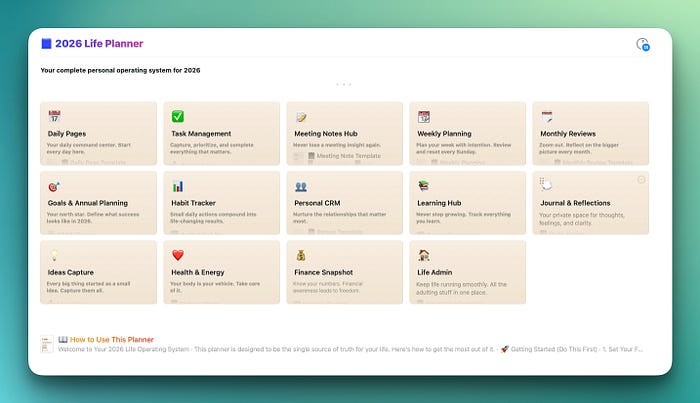
The reason I built this is because I spent years trying different planning systems and always ended up with my life scattered across six different apps. The planner puts all of it in one Craft workspace so you never have to context-switch between apps just to figure out what your day looks like or whether you are on track with your quarterly goals.
Over 140 people have already picked it up since launch, and the feedback has been really encouraging. It is available on Gumroad starting at $19, and you get lifetime access with a single purchase. If Craft is already part of your workflow (or if reading this section made you want to try it), the planner is the fastest way to turn it into a full life operating system.
#6 Boom 3D — Because MacBook speakers deserve better
This one might seem unexpected on a productivity list, but hear me out. I mostly use my Mac to watch YouTube videos while I am having my meals, and I live in a fairly noisy neighbourhood. The MacBook speakers are decent, but when you are competing with traffic and general city noise, they are just not loud enough.
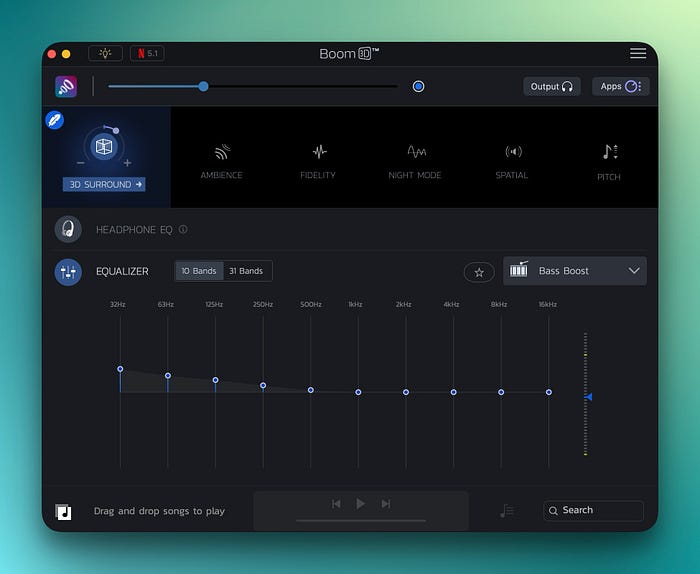
Boom 3D amplifies the audio output significantly beyond what the default Mac speakers can manage, and it makes a noticeable difference. The volume boost is substantial. Since most YouTube videos do not have professional-grade audio quality to begin with, an app like Boom 3D helps bridge that gap and makes the listening experience a lot more enjoyable without needing external speakers or headphones every single time.
It is a simple app that does one thing really well, and for someone who relies on their Mac's built-in speakers regularly, it is absolutely worth it.
#7 Dato — Two seconds to know your entire day
I use Dato as my go-to way to quickly check what my day and week look like without ever opening the full Calendar app. It sits in the menu bar, and a single click shows me all my upcoming events, tasks, and reminders in a clean, glanceable view.
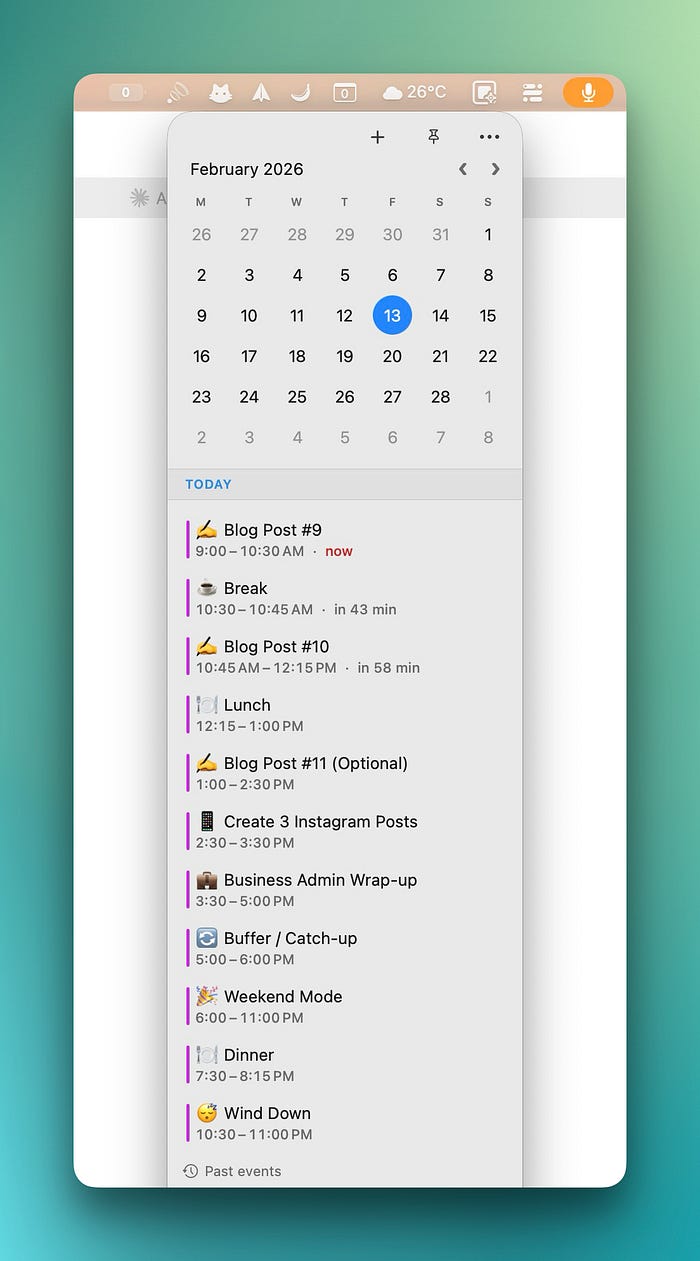
What makes Dato better than just opening the Calendar app is its speed and intuitiveness. I can quickly look at a task, add a new one, or join a meeting directly from the menu bar icon. The entire interaction takes a couple of seconds. Compare that to opening the Calendar app, navigating through the days and weeks to find the event, and then clicking through to get the meeting link.
It is the difference between a two-second glance and a thirty-second detour, and when you do it multiple times a day, Dato earns its place.
#8 Batteries — Never leave the house with dead AirPods again
Batteries is a straightforward app that lets me monitor the battery levels of my AirPods, iPad, and iPhone directly from my Mac. It sits in the menu bar and gives me a quick view of how much charge each device has.
This has saved me more than once from leaving the house with dead AirPods. I have a habit of glancing at the Batteries widget before I head out for the day, and if my AirPods are running low, I know to charge them before I leave.
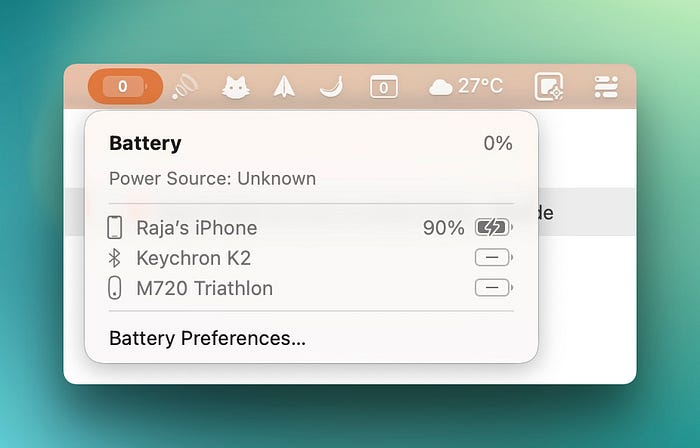
It is a simple use case, but anyone who has been stuck on a commute or a walk with dead AirPods knows how annoying that is. For the small amount of screen real estate it takes up in the menu bar, the peace of mind it provides is completely worth it.
#9 Book Tracker — 70 books a year, and I remember every stat
I read a lot. Around 70 to 80 books a year, depending on the year, and Book Tracker is how I keep tabs on all of it.
I use it to maintain a catalogue of every book in my home library, and whenever I start reading a new book, I make sure to start the reading timer attached to that book in the app. This lets me know exactly how much time I am spending reading each day, how many pages I am getting through in a given session, and how long it is likely going to take me to finish the book at my current pace.
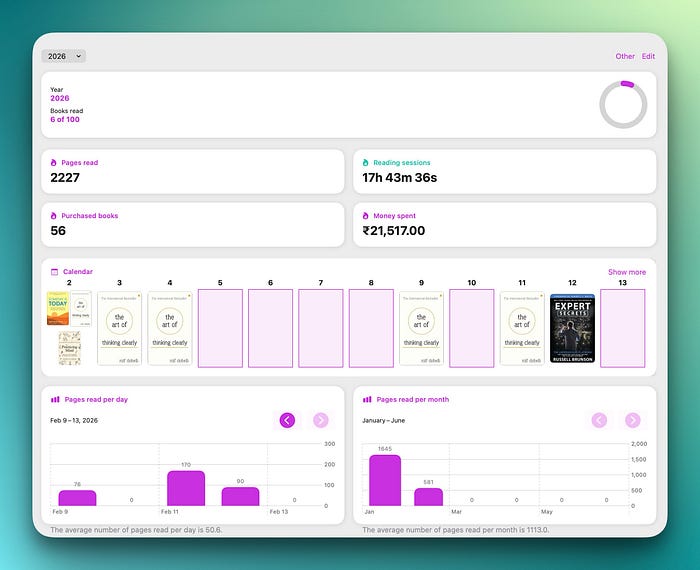
It also helps me keep track of how much money I am spending on books in a given week, month, or year. As someone who buys physical books regularly, this is useful data to have. I can see my spending patterns and make sure my book-buying habit stays within reason (or at least be aware of when it does not).
For anyone who reads regularly and wants to understand their reading habits better, this app is a quiet companion that does its job without getting in the way.
#10 Expenses — Budget tracking that does not feel like filing taxes
I have tried multiple budget tracking apps over the years, and the problem with most of them is that they are either too complicated, packed with unnecessary features, or they make the simple act of adding an expense feel like filing a tax return. Expenses is none of those things.
The app is simple and straightforward. You create separate sheets for different categories of expenses, add your purchases as they happen, and at the end of the month (or week), you get a clean summary showing you exactly how much you spent on each category. You can set a budget for each category, too, which helps you stay within limits for things like dining out, subscriptions, or entertainment.
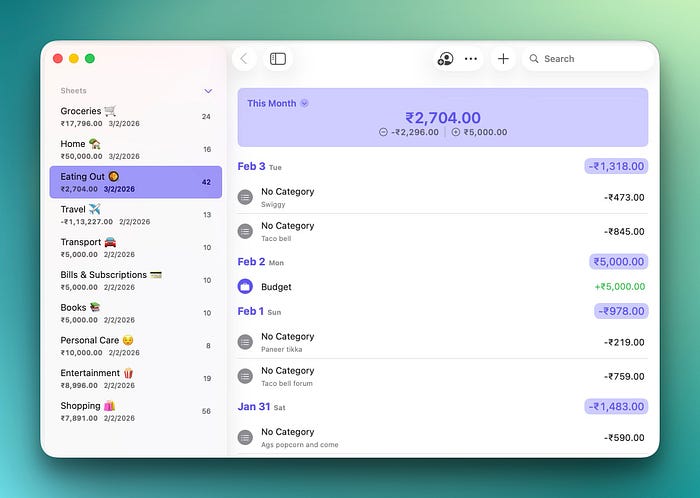
I mainly use it for tracking personal expenses, and the reason it has stuck with me when other apps have not is purely because of how frictionless the experience of logging an expense is. Open the app, pick the category, type the amount, and done. No complicated setup, no syncing with bank accounts, no AI trying to categorize things for you. Just a clean, manual expense tracker that respects your time.
All of these apps except Book Tracker are available on Setapp, which means you can either subscribe to each of them individually and spend an exorbitant amount of money or get access to all of them (along with hundreds of other Mac and iOS apps) through a single Setapp subscription for just $9.99 a month.
If you want to try them out before committing, you can use my affiliate link below with the code 'usefultech' to get a one-month free trial of Setapp. It is a no-commitment way to test every app on this list and see which ones fit your workflow. I have been a Setapp subscriber for a long time now, and it remains one of the best value propositions in the Mac app ecosystem.