

What's new in iOS 26.1?
ACCESSIBILITY
1 — Make Liquid Glass less glassy
2 — Swipe left to go to advanced text menu
LOCK SCREEN
3 — Turn off swipe to open Camera
4 — Slide to stop alarms and timers
AUDIO & MUSIC
5 — AutoMix now works over AirPlay
6 — Swipe to change songs
7 — Lock Screen time shrinks to make room for album art
CALLS
8 — Improved FaceTime Audio quality
9 — Disable call haptics
10 — Choose location for Local Capture
PHOTOS
11 — Larger scrubber for videos in Photos
12 — Screenshots are shown shrunk now
GEOGRAPHICAL AND LANGUAGE EXPANSION
13 — Apple Intelligence available in new languages
14 — Additional languages for Live Translation
15 — Add driver's license for North Dakota
MISCELLANEOUS
16 — Background Security Improvements
#1. Make Liquid Glass less glassy
If you struggled to read text on the Liquid Glass UI (look below)

the workaround I suggested in this article ↓ was to toggle Reduce Transparency.
That made Liquid Glass opaque in most areas, thereby making text easier to read. It would also save battery as your iPhone then wouldn't need to render what's behind the buttons.
Now forget that! Apple brings an official toggle to reduce the intensity of Liquid Glass.

Check Tint in Settings ⚙️ < Display & Brightness ☀️ < Liquid Glass — and your buttons get more contrast and opacity, so things get more readable.
However, you'll not notice any improvement in battery life as Liquid Glass is still active and rendering what's behind it everywhere.
#2. Swipe left to go to advanced text menu
Know this menu?

It's the one you get when you select some text.
Back in iOS 18, you could simply swipe left/right to see more options.
But with iOS 26, you had to stretch your thumb towards the arrowheads at the extreme ends to access them.

However, as a good news, you can once again simply swipe left to reveal the advanced text menu.
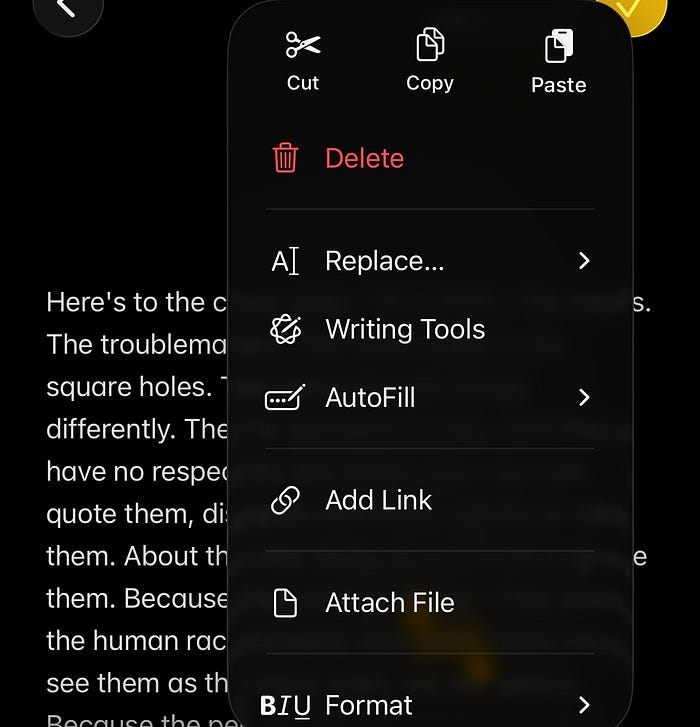
Tiny change, but incredibly useful.
#3. Turn off swipe to open Camera
Many people love the old feature of swiping left on the Lock Screen to open Camera. An equal number who hate it blame accidental triggers.
Since you can already double-press the Camera button to open Camera on supported iPhones, Apple made the swipe optional, perhaps.
Toggle off Lock Screen Swipe to Open Camera in Settings ⚙️ < Camera 📷 to disable the gesture.

#4. Slide to stop alarms and timers
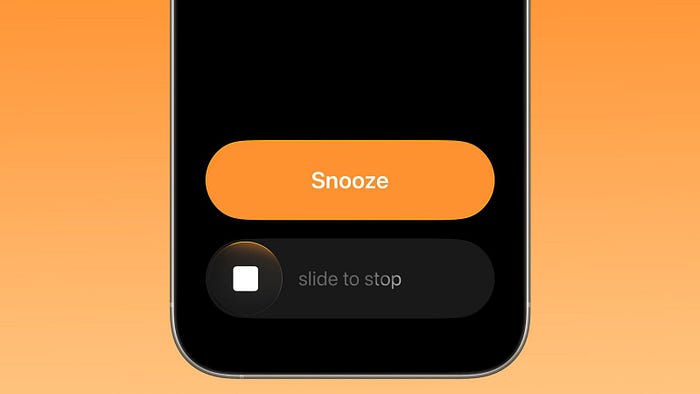
Have you ever accidentally tapped "Stop" on a crucial alarm or timer while half-asleep and missed it? I bet you've been there.
Now rejoice, Apple's making harder to unknowingly dismiss them. Instead of a simple tap, you now need to 'Slide to Stop' alarms and timers.
#5. AutoMix now works over AirPlay
Know Apple Music's AutoMix feature that launched with iOS 26?
Let me explain it for the uninitiated.
It's Crossfade on steroids. Crossfade was introduced with iOS 17 to make a smooth transition from a song to another by slowly fading out the current song and bringing up the next one toward the end.
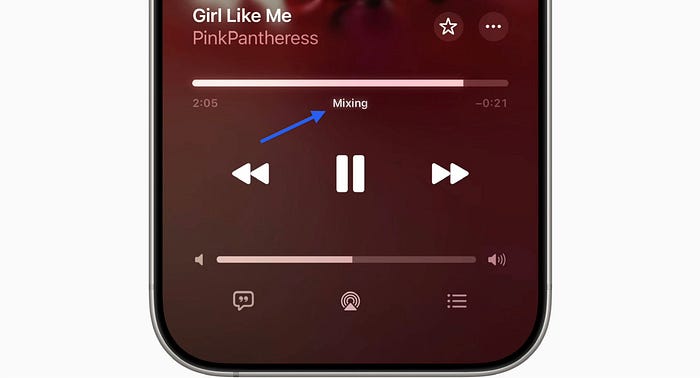
But AutoMix is an "intelligent" feature that would transition between songs like a pro DJ.
Note that this doesn't require Apple Intelligence, just needs an active Apple Music subscription.It analyzes the musical characteristics of both the songs to understand their tempos, keys, energy levels, and other audio elements.
Then it uses advanced audio techniques to match the beats and timing between songs, so transitions feel natural and within the flow.
You won't even notice how smoothly it jumps between tracks.
Toggle AutoMix in Settings ⚙️ < Apps < Music 🎵R &t; Song Transitions.
With iOS 26.1, it works over AirPlay too. (What the hell stopped it from working with AirPlay before?)
#6. Swipe to change songs
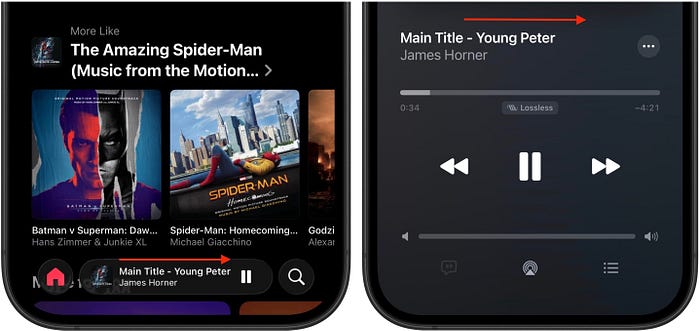
In the Music app, you can now move to the next or previous song by swiping left or right. This gesture works whether you're on the mini-player at the bottom or the full-screen player.
#7. Lock Screen time shrinks to make room for album art
Haha this is a cool feature.
When you're on the Lock Screen, listening to music or a podcast, if you enlarge the album art (or it's already enlarged), the time display cleverly shrinks.

This makes more room for the album art, allowing you to appreciate it fully.
#8. Improved FaceTime Audio quality
This is purely an internal improvement that doesn't have a UI.
The iOS 26.1 release notes mention that Apple has enhanced FaceTime Audio to deliver better sound quality even when network bandwidth is low.
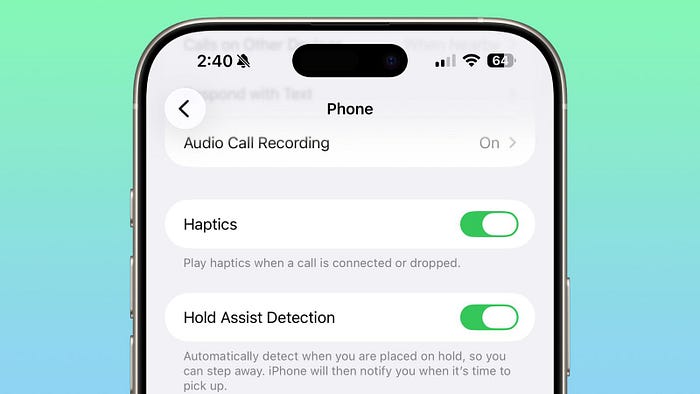
#9. Disable call haptics
Did you notice subtle haptics playing when the other person answered or the call drops after you updated to iOS 26?
With iOS 26.1, you have the option to turn them off. Simply turn off Haptics in Settings ⚙️ < Apps < Phone 📞.
#10. Choose location for Local Capture
Local Capture is a hidden feature of iOS 26.
For the uninitiated, say you wanna record yourself speaking in an audio or video call. Just yourself and not the other person.
So instead of recording the call (and making the other person uncomfortable), you could only record yourself using Local Capture.
To use this, add it to the Control Center first. You cannot access it elsewhere.
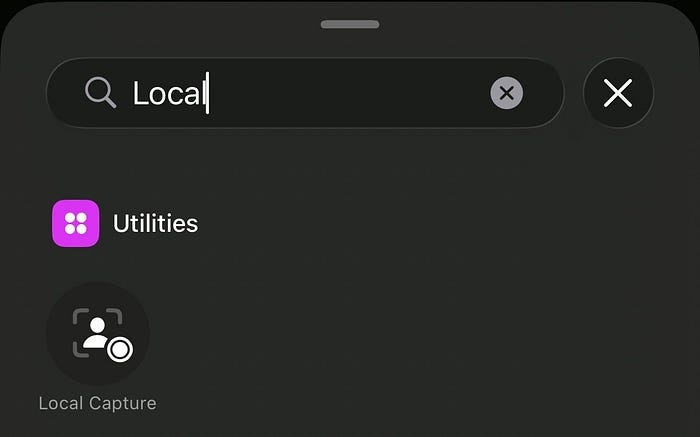
Before making/receiving/during a call, activate it. Once you're in the call, it starts recording you.
With iOS 26.1, instead of saving recordings to the default location (Downloads), you can now choose where to save them.

Choose your preferred location in Settings ⚙️ < General ⚙️ < Local Capture.
#11. Larger scrubber for videos
The video scrubber in the Photos app is now larger.
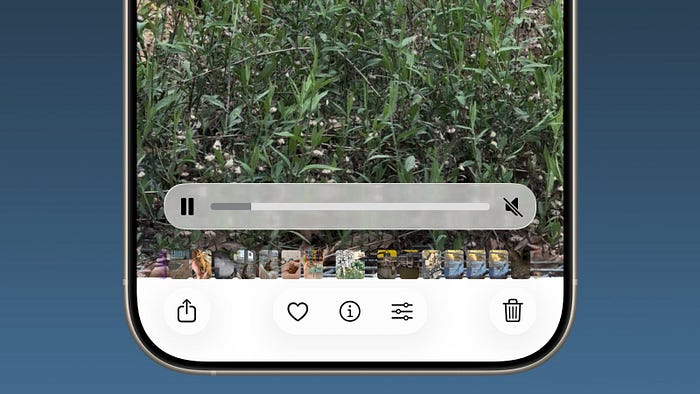
It gets even larger when you tap it to scrub through the video, also showing the elapsed time on the left and remaining time on the right.
#12. Screenshots are shown shrunk now
Screenshots now appear differently in the Photos app, in a better way.
They appear normal when you swipe through them. But when you tap a screenshot to open the editing menus, it shrinks slightly towards the center.
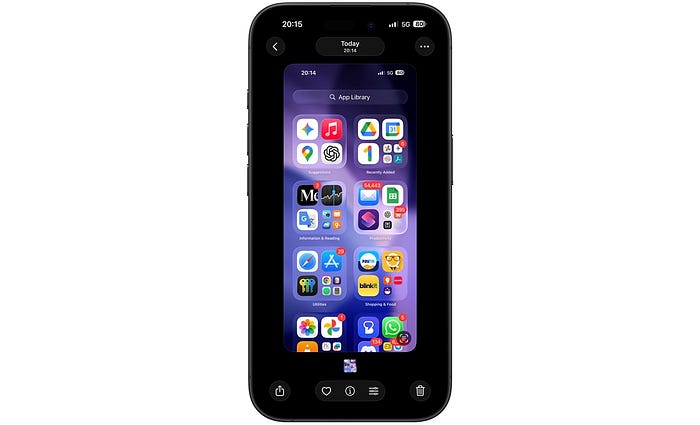
This lets the other menus not block the screenshot view.
#13. Apple Intelligence available in new languages
Apple Intelligence now supports eight new languages.
• Danish
• Dutch
• Portuguese (Portugal)
• Swedish
• Turkish
• Chinese (Traditional)
• Vietnamese
If you speak any of these languages, to use AI in your language, choose it in Settings ⚙️ < Apple Intelligence & Siri < Language.
#14. Additional languages for Live Translation
AirPods Live Translation now works with five additional languages.
• Chinese (Mandarin and Simplified)
• Japanese
• Korean
• Italian
To use any of the above language with Live Translation, open Translate app < Live.
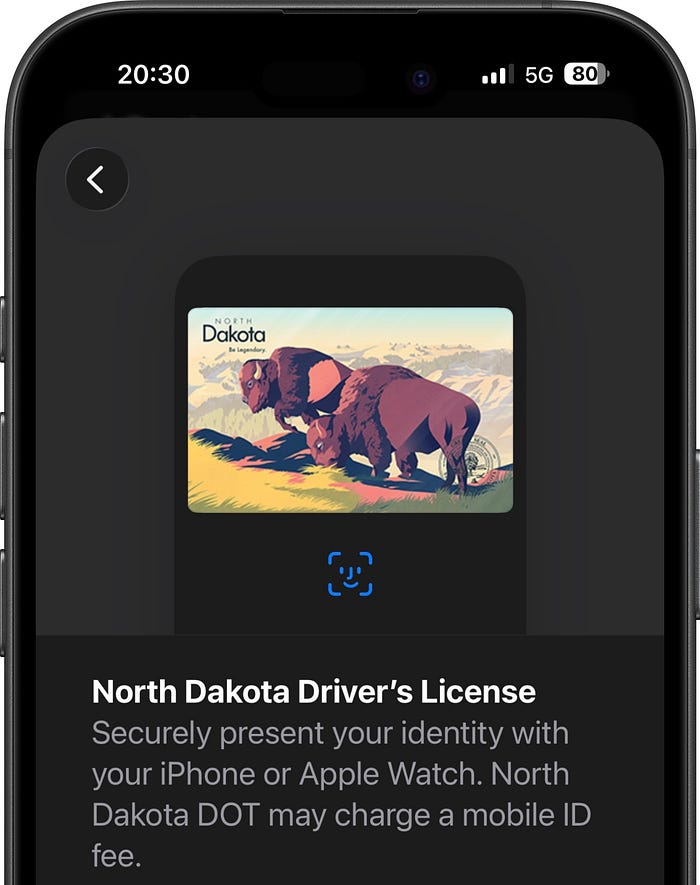
#15. Add driver's license for North Dakota
Apple expands the list of US states by 1 where it supports adding a valid driver's license to the Wallet app.
People in North Dakota can now do that.
#16. Background Security Improvements
Remember the Rapid Security Responses features launched with iOS 16? (Written in #9 of this article ↓)
It was designed to automatically install critical security patches without needing a full software update.
Now this is its revamp.
It's renamed to 'Background Security Improvements' and is moved to Settings ⚙️ < Privacy & Security ✋.

The best part is you can now see the details of the last installed patch below and even delete it by tapping the three-dots icon next to it, if you want.
Isn't iOS 26 awesome?
115+ new features of iOS 26: A Compilation (Always Updated)
Finally,
If you love exploring new iOS & Mac apps (like me), consider subscribing to Setapp. You'll get access to a curated collection of 240+ amazing apps for just $9.99 a month, which rather cost hundreds of dollars if purchased individually.
- Use my affiliate link to start your Setapp journey! (It's free for 30 days)
- Get my free list of 100+ Ultimate macOS Apps on Setapp here.